How to Remove Background Noise From Audio
How to remove background noise from a recording, the Audacity settings that work, which noises can be removed and which cannot, and how to avoid over processing.
How to clean up a noisy recording, the specific settings that work in free software, which kinds of noise can actually be removed, and the over processing that makes audio worse than the problem it was fixing.
To remove background noise, capture a profile of the noise from a section where nobody is speaking, apply noise reduction using that profile, and use the lightest setting that makes the recording comfortable. Steady noise such as hum or air conditioning removes well. Echo and intermittent sounds largely do not.
The useful question is not "which tool removes noise best?" It is "what kind of noise is this?" The answer determines whether you have a ten second fix, a compromise, or something that cannot be repaired and has to be re-recorded.
Work out what kind of noise you have
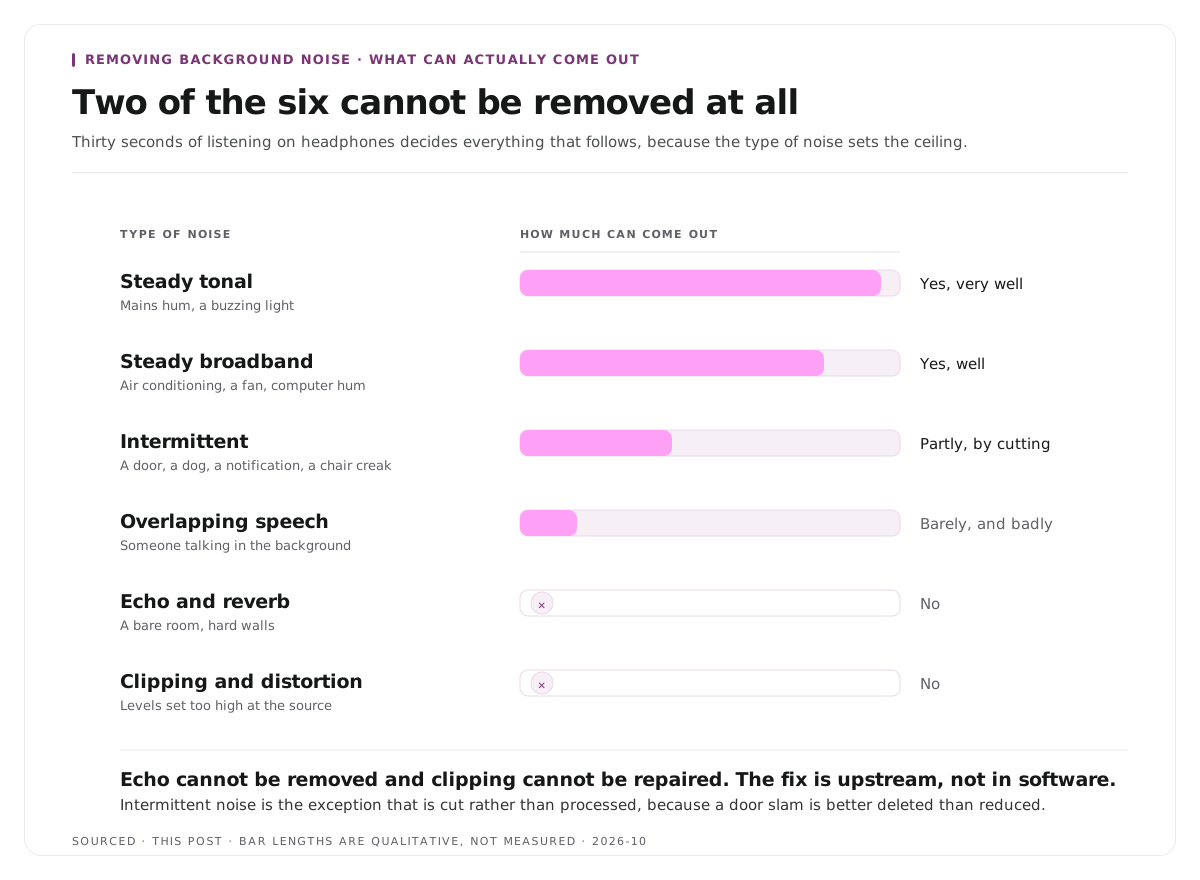
This decides everything that follows, and it takes thirty seconds of listening on headphones.
| Type of Noise | Example | Removable? |
|---|---|---|
| Steady broadband | Air conditioning, fan, computer hum | Yes, well |
| Steady tonal | Mains hum, a buzzing light | Yes, very well |
| Intermittent | Door, dog, notification, chair creak | Partially, by cutting rather than processing |
| Overlapping speech | Someone talking in the background | Barely, and badly |
| Echo and reverb | Bare room, hard walls | No |
| Clipping and distortion | Levels set too high at the source | No |
The two at the bottom are the ones worth being blunt about. Echo cannot be removed. Processing that claims to reduce it works by removing frequency content, which makes the voice sound hollow and underwater. Clipping cannot be repaired either, because the waveform was flattened at the point of recording and the information is gone.
If you have either, the honest answer is that the recording has a ceiling, and the fix is upstream rather than in software.
The core technique: a noise profile
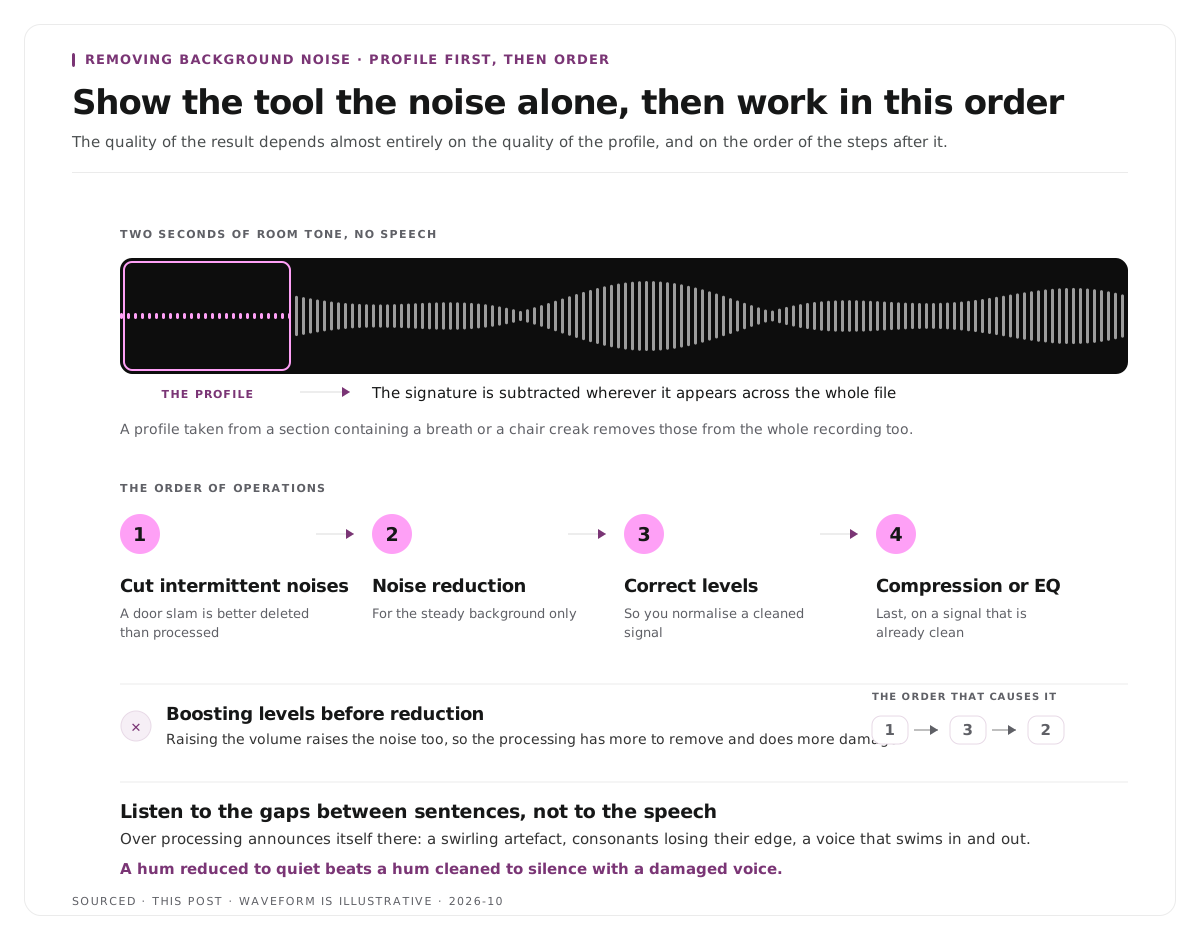
Almost every noise reduction tool works the same way. You show it an example of the noise alone, and it removes that signature from the whole recording.
Find a section with no speech. Two seconds is enough. Usually the beginning before anyone starts, or a gap between sentences. This is why experienced recordists deliberately capture a few seconds of room tone at the start of a session, because it gives the processing a clean reference.
Capture the profile. The tool analyses the frequency content of that selection.
Apply the reduction to the whole file. It now subtracts that signature wherever it appears.
The quality of the result depends almost entirely on the quality of the profile. A profile captured from a section that contains a breath, a distant voice or a chair creak will remove those things from the whole recording too, which produces strange artefacts.
How to do it in Audacity
Audacity is free, runs on every platform, and does this well.
- Select a section containing only background noise, a couple of seconds with no speech.
- Go to Effect, then Noise Reduction, then click Get Noise Profile. The window closes, which is expected.
- Select the audio you want to clean, usually the whole track with Ctrl or Cmd and A.
- Go to Effect, then Noise Reduction again, and click OK.
Starting settings that work for most recordings: Noise Reduction around 12 dB, Sensitivity around 6, Frequency Smoothing around 3.
Those numbers matter. The default instinct is to push the reduction as high as it goes, which produces the characteristic underwater sound. Start at 12 dB and increase only if the noise is still distracting, listening on headphones each time.
The same principle applies in other software. Adobe Audition calls the profile step Capture Noise Print, then offers Reduction and Residue sliders to balance how aggressively it works.
Over processing, and how to hear it
The most common mistake is removing too much, and it is worse than the original noise because it sounds unnatural rather than merely imperfect.
What over processing sounds like: a hollow or underwater quality, consonants losing their edge, a swirling or warbling artefact in the gaps between words, and a voice that seems to swim in and out as the processing engages.
How to check: listen to the quiet moments between sentences rather than to the speech. Artefacts are most audible there, and the gaps are where over processing announces itself.
Always compare against the original. Toggle the effect on and off. If the processed version sounds different rather than clearly better, you have gone too far.
Remember the ceiling. A recording with a noticeable hum, cleaned to the point where the hum is merely quiet, is usually a better result than one cleaned to silence with a damaged voice. Listeners forgive background noise far more readily than they forgive a processed voice.
The order of operations
If you are doing more than noise reduction, the order matters and getting it wrong costs quality.
- Remove or cut intermittent noises first. A door slam is better deleted or reduced manually than processed, because noise reduction will not catch it and will not try.
- Then apply noise reduction for the steady background.
- Then correct levels, so you are normalising the cleaned signal rather than the noise.
- Then any compression or EQ, last.
The one that catches people out is doing noise reduction after boosting levels. Raising the volume first raises the noise too, which means the processing then has more to remove and does more damage. The same sequencing logic applies across audio and video repairs, covered in how to edit a podcast, the audio and video workflow.
Prevention, which is most of the answer
Everything above is damage limitation. The actual fix sits at the recording stage and costs nothing.
Get closer to the microphone. Three to six inches. The ratio of voice to room improves dramatically with distance, and this single change does more than any processing.
Soften the room. Carpet, curtains, a sofa, books on shelves. Hard parallel surfaces produce the echo that cannot be removed afterwards.
Turn things off. Air conditioning, fans, the dishwasher, notifications. Thirty seconds of switching things off beats an hour of processing.
Record a few seconds of room tone. Deliberately capture silence at the start of every session. It costs nothing and gives you a clean noise profile later.
Record each speaker on a separate track. This solves the hardest case, which is background speech and overlapping voices, and nothing else does. The remote version of this is in how to record a podcast remotely, and the equipment ordering in video podcast equipment.
Monitor on headphones while recording. Almost every ruined recording was audible in the first minute and nobody was listening.
Why this matters more for clips than for full episodes
Short form is less forgiving of audio problems than long form, for a reason that is not obvious.
A listener who has committed to a forty minute episode adjusts to a background hum within a minute and stops noticing it. Someone encountering a forty second clip in a feed has made no such commitment, and noisy audio in the first two seconds is a reason to scroll rather than something to adapt to.
There is also nowhere to hide. A long recording has quiet passages and loud ones, and the ear calibrates. A short clip is one continuous sample of your worst audio if you happened to cut from a noisy section.
The practical consequence is to clean the full recording before cutting rather than cleaning clips individually. One pass over the source means every clip inherits it, and the clips stay consistent with each other, which fits the batching approach in how to batch a month of clips in one afternoon.
Worked example: two noisy recordings
This is an invented example, not measured data.
Two interviews are recorded in the same building on the same afternoon.
The first has a steady air conditioning hum throughout. A noise profile from the two seconds before the first question removes it almost completely at 12 dB, and the voices are untouched. Total time, under two minutes.
The second was recorded in a bare meeting room with hard walls. There is no hum, and there is noticeable echo on every word. Noise reduction does nothing useful, and pushing it harder makes the voices hollow without reducing the echo at all.
The first recording had a worse problem on paper and was fixed in two minutes. The second had a problem that software does not solve, and the only real answer was a different room.
Where Montage fits
Montage is not an audio repair tool. It does not offer noise profiles, manual noise reduction, EQ or compression, and for a recording that genuinely needs rescuing, a dedicated audio editor is the right tool.
What it does is take a long recording and return the moments worth publishing, with branded captions and vertical framing applied. Upload up to 20GB at 4K and it returns a timestamped transcript alongside 8 to 10 scored clip candidates, each trimmable by editing the transcript text, exporting as MP4 for social or XML, FCPXML and JSON for an editor.[1]
Two things connect to this page. Clean the audio before uploading, because every clip inherits the source and fixing eight clips individually is eight times the work. And transcription accuracy depends on the same properties as listenability, so a recording with background speech and echo produces a worse transcript as well as worse clips, which affects how well the moments can be found in the first place. The pipeline is explained in how AI video clipping works.
To try it on one recording, use the podcast clip finder.
Limitations and troubleshooting
The noise is gone and the voice sounds underwater. Over processed. Reduce the amount, start again at 12 dB, and accept some remaining noise.
There is a warbling sound between words. A classic artefact of too much reduction. Lower the setting and check the gaps rather than the speech.
Noise reduction did nothing. The noise is probably not steady. Intermittent sounds need cutting manually, and echo cannot be processed out at all.
The profile removed part of the voice. The selected section was not silent. Find two seconds with genuinely nothing in it and capture again.
There is no quiet section anywhere in the recording. Use the shortest gap you can find, accept a weaker result, and record room tone deliberately next time.
The recording clips on loud moments. Distortion from the recording stage cannot be repaired. Set input levels lower next time so normal speech sits well below the maximum.
Someone is talking in the background throughout. The hardest case, and essentially unsolvable in a mixed recording. Separate tracks per speaker prevent it entirely.
Frequently asked questions
How do you remove background noise from a recording?
Capture a noise profile from a section containing only the background noise, then apply noise reduction using that profile across the whole recording. Use the lightest setting that makes it comfortable rather than the strongest available.
What are good noise reduction settings in Audacity?
Around 12 dB of reduction, sensitivity around 6 and frequency smoothing around 3 is a reliable starting point. Increase only if the noise is still distracting, listening on headphones between attempts.
Can you remove echo from a recording?
No, not convincingly. Processing that claims to reduce reverb works by removing frequency content, which makes the voice sound hollow. Echo has to be prevented at the recording stage with a softer room.
Why does my audio sound worse after noise reduction?
Over processing. Removing too much produces a hollow quality and a warbling artefact between words. Reduce the setting and compare against the original by toggling the effect on and off.
Should you reduce noise before or after adjusting levels?
Before. Raising the volume first raises the noise with it, which means the processing has more to remove and does more damage to the voice.
What is room tone and why record it?
A few seconds of the room with nobody speaking. It gives noise reduction a clean profile to work from, and capturing it deliberately at the start of a session costs nothing.
Does Montage clean up audio?
No. Montage produces clips from recordings and has no audio repair features. Clean the source in an audio editor before uploading, since every clip inherits the audio of the recording it came from.