How to Record a Podcast Remotely: 4 Methods Compared
Four ways to record a podcast with remote guests compared, why the double-ender protects your audio, and the guest preparation that prevents most failed recordings.
Four methods for recording a podcast with remote guests, compared on audio quality and failure risk, plus the guest preparation and backup strategy that prevent most lost recordings.
To record a podcast remotely, use software that captures full quality audio and video locally on each participant's own machine and uploads the files afterwards. This is called a double-ender. Recording the video call itself bakes compression and every dropout into your master, and no amount of editing removes them.
The useful question is not "which app should I use?" It is "what happens to this recording if someone's internet drops for four seconds?" With a call recording, you have a hole. With local recording, you have nothing at all, because the audio never travelled over the connection.
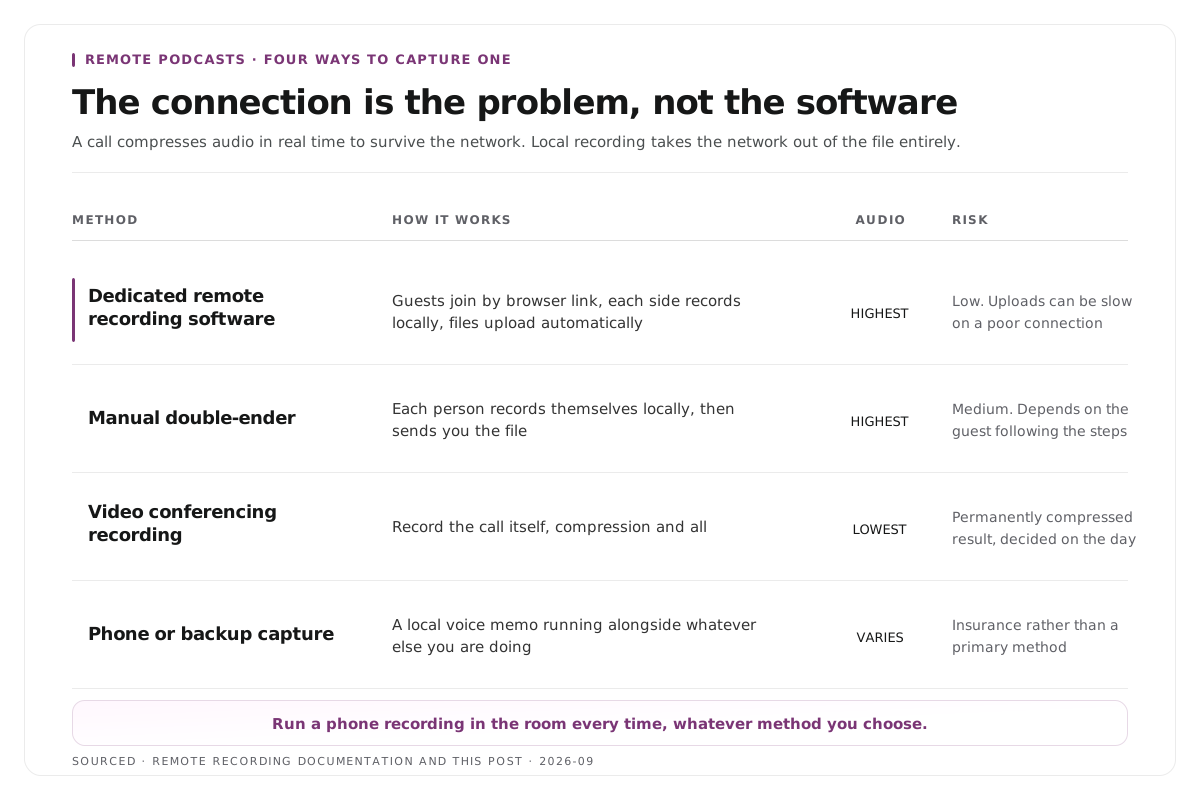
Why the connection is the problem, not the software
A video call compresses audio hard, in real time, to survive whatever bandwidth is available at that moment. That compression is the right trade off for a conversation and the wrong one for a recording you intend to publish.
When you hit record inside a calling app, what gets saved is the compressed stream that arrived at your end, including every artefact the network introduced. The guest sounded fine in the room they were sitting in. You recorded the version that survived the journey.
Local recording removes the network from the equation entirely. Each participant's own device captures their own audio and video at full quality, and the files upload afterwards, when speed no longer matters. A dropout during the conversation becomes an awkward moment to edit around rather than a permanent hole in the audio.
Step 1: choose your method
| Method | How It Works | Audio Quality | Risk |
|---|---|---|---|
| Dedicated remote recording software | Guests join by browser link, each side records locally, files upload automatically | Highest | Low. Uploads can be slow on poor connections |
| Manual double-ender | Each person records themselves locally, then sends you the file | Highest | Medium. Depends on the guest following instructions |
| Video conferencing recording | Record the call itself | Lowest | Low effort, permanently compressed result |
| Phone or backup capture | A local voice memo alongside whatever else you are doing | Varies | Insurance rather than a primary method |
Dedicated software is the default for most shows. A guest clicks a link, nothing gets installed, and each side is captured at full quality with separate tracks.
The manual double-ender is the free version of the same idea. You each record locally using whatever you have, then the guest sends you their file. It works, and it fails whenever a guest forgets to press record or exports the wrong thing. Use it when budget rules out the alternative, and confirm the guest has actually started recording before you begin.
Recording the call is the fallback, not the plan. It is acceptable for an internal recording or a show where the conversation matters more than the sound. For anything you are publishing and clipping, the quality ceiling is set on the day and cannot be raised later.
A phone recording in the room costs nothing and has rescued a lot of episodes. Run one every time regardless of method.
Step 2: get separate tracks for every participant
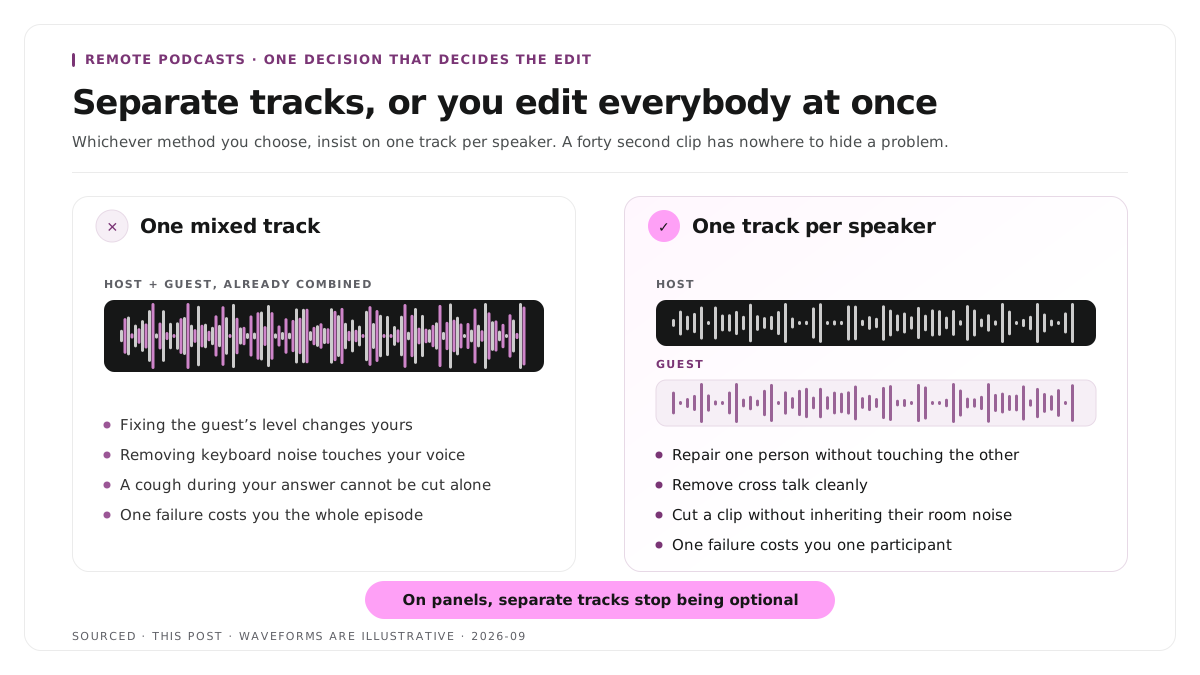
Whichever method you choose, insist on separate tracks per speaker. This is the single decision that determines how much control you have afterwards.
With one mixed track, fixing the guest's level changes yours, removing their keyboard noise touches your voice, and a cough during your answer cannot be cut without cutting the answer.
With separate tracks you repair one person without affecting anyone else, remove cross talk cleanly, and cut a clip without inheriting someone else's background noise. For clip work specifically this matters more than it does for the full episode, because a forty second clip has nowhere to hide a problem.
Separate tracks also mean a single failure costs you one participant rather than the episode. They matter most on panels, where three or four voices overlap constantly, a case covered in how to clip multi speaker panel discussions without losing context.
Step 3: prepare the guest before the day
Most failed remote recordings were decided before anyone pressed record. Send this with the calendar invite, not on the day.
- Headphones, not speakers. Without headphones the guest's speakers feed your voice back into their microphone, producing echo that cannot be removed cleanly.
- Any external microphone beats a laptop microphone. Even inexpensive earbuds with an inline microphone outperform a built in one, because the distance to the mouth is what matters most.
- Wired internet if possible, and close everything else. Most remote audio problems are bandwidth problems.
- A quiet room with soft furnishings. Carpet, curtains and a closed window do more than a better microphone does in a bare room.
- Sit three to six inches from the microphone. Most guests sit too far away and compensate by raising their voice, which makes the room louder rather than the voice clearer.
- Silence notifications and put the phone in another room.
Send this as six short lines. A long document does not get read.
Step 4: run a test take before the real one
Never make the episode the first recording of the day.
Record thirty seconds. Have each participant speak for roughly twenty seconds while you watch levels and listen on headphones. Then stop, play it back, and check four things: both voices present, no echo, no clipping on peaks, and the video in focus and lit from the front.
This catches nearly every equipment fault that would otherwise appear in the edit, and it costs two minutes. It also settles a nervous guest, which improves the first ten minutes of the actual conversation.
Confirm out loud that recording has started before the real take. "We are recording now" has saved more episodes than any piece of equipment.
Step 5: record so the episode still clips
Remote recording introduces two clip specific problems that in person recording does not.
Cross talk is worse on a delay. A half second of latency means participants talk over each other more often, and overlapping audio is the most common reason a good moment cannot be cut cleanly. Leave a deliberate beat after each answer.
Guests look at the wrong thing. Eye contact with the camera reads as connection, and eye contact with the screen reads as distraction. Ask the guest to look at their camera when they are answering rather than at your face on screen.
Beyond that, the habits are the same ones that apply in person. Restate the question inside the answer, say the numbers out loud, and mark the moments that land. The same principles apply to cutting the result, which is covered in how to edit an interview video.
Worked example: two shows, one dropout
This is an invented example, not measured data.
Two shows record a remote interview. In both, the guest's connection drops for about four seconds at the eighteen minute mark, mid sentence, during the best answer of the episode.
The first show recorded the call. The four seconds are gone from the master because they never arrived. The answer has a hole in the middle of its strongest sentence, and the moment cannot be published as a clip.
The second show recorded locally on both sides. The guest kept talking and their own machine kept recording, so the audio is complete. The host lost the thread for four seconds and interrupted slightly, which is an edit rather than a loss. The answer becomes a clip.
Same conversation, same internet fault, same guest. The difference was a decision made before either of them pressed record.
Where Montage fits
Montage does not record anything. It is not a remote recording tool, it does not host calls, it does not invite guests and it has no part in your recording setup. Everything on this page happens before Montage is involved.
Where it comes in is the finished file. Upload the recording, up to 20GB at 4K, and it returns 8 to 10 scored clip candidates rather than an unranked pile, lets you trim each by editing transcript text, applies branded captions, reframes to vertical and exports MP4 for social or XML, FCPXML and JSON for an editor.
It also cannot repair audio that was compressed on the way in, which is the entire reason this page argues for local recording. Scoring finds the best moments a recording contains. It cannot improve how those moments sound.
To try it on a single episode use the podcast clip finder, and for the order in which to fix audio and video see how to edit a podcast, the audio and video workflow. The wider tool category is compared in the best podcast clip makers in 2026.
Limitations and troubleshooting
There is an echo on the guest's track. They are listening through speakers rather than headphones, so your voice is being picked up by their microphone. There is no reliable fix in post. Headphones are non negotiable.
The guest's audio sounds distant and roomy. They are too far from the microphone. Three to six inches is the target, and moving closer does more than any processing will.
The guest forgot to press record on a manual double-ender. This is why the method carries risk. Confirm recording has started out loud before the real take, and always run your own backup capture.
Video and audio drift out of sync over a long recording. Common with separately recorded tracks. Clap once at the start so there is a visible spike to align to.
The upload is still running hours later. Normal on a slow connection with a long 4K recording. Ask the guest to leave the browser tab open and the machine awake until it completes, and warn them in advance so they do not close it.
One participant's track is missing entirely. Recover whatever exists, check the backup capture, and if the guest is unrecoverable consider whether the episode works as a host narrated summary rather than a lost recording.
Frequently asked questions
What is a double-ender recording?
A recording where each participant is captured locally on their own device at full quality, and the separate files are combined afterwards. Because the audio never travels over the internet, network problems do not affect the recording.
Can you record a podcast remotely for free?
Yes. A manual double-ender costs nothing, since each person records themselves with whatever software they have and sends you the file. The trade off is that it depends entirely on the guest following instructions correctly.
Is recording a Zoom call good enough for a podcast?
For an internal recording or a show where the conversation matters more than the sound, it is workable. For anything published and clipped, the audio is compressed permanently on the day and cannot be improved later.
Do you need separate audio tracks for each guest?
Yes, for anything you intend to edit. Separate tracks let you fix one person without touching anyone else, remove cross talk cleanly, and cut a clip without inheriting someone else's background noise.
What should you send a remote guest before recording?
Six lines: use headphones, use any external microphone, sit three to six inches from it, use wired internet if possible, choose a quiet soft furnished room, and silence notifications. Anything longer does not get read.
Does Montage record remote podcasts?
No. Montage processes finished recordings into clips. Recording, hosting and publishing are handled by other tools.