How to Transcribe a Zoom Meeting: 3 Methods Compared
Three ways to transcribe a Zoom meeting, why the built in transcript needs a paid plan and cloud recording, and what to do when neither applies to you.
Three routes to a Zoom transcript, the two conditions the built in option quietly requires, and what to do when your plan or your recording settings rule it out.
Zoom can generate a transcript automatically, but only if you are on a paid plan and only if you recorded to the cloud rather than locally. If either is untrue, the transcript has to come from uploading the recording file to a separate tool, which works on any plan.
The useful question is not "how do I turn on transcription?" It is "did this meeting record to the cloud or to my computer?" That single detail decides which of the three methods below is even available to you, and almost every guide buries it.
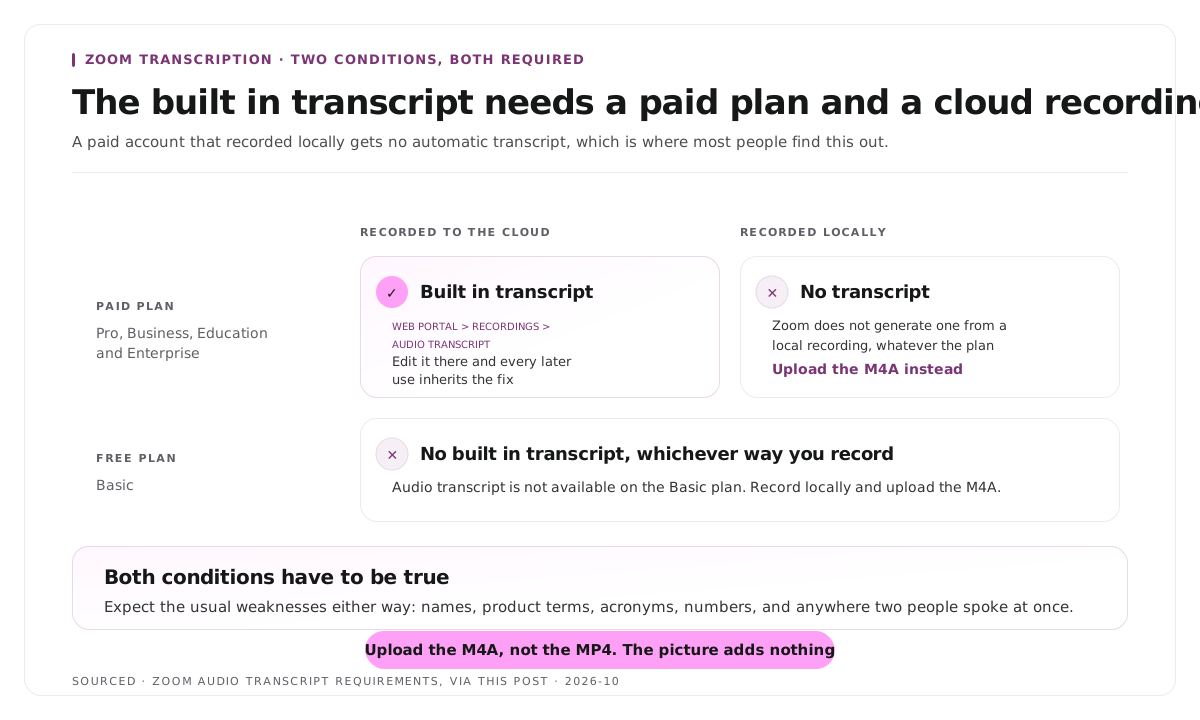
The two conditions you need to know first
Zoom's built in transcription depends on both of these being true.
A paid plan. Audio transcript is available on Pro, Business, Education and Enterprise. It is not available on the Basic free plan, which is where most people discover the feature does not exist for them.
Cloud recording. The transcript is generated from a cloud recording. If you recorded locally to your own computer, Zoom does not produce one, regardless of your plan.
Both have to be true. A paid account recording locally gets no automatic transcript, which catches a lot of people who assumed the plan was the only requirement.
Method 1: Zoom's built in audio transcript
Enable it before the meeting:
- Sign in to the Zoom web portal, not the desktop app.
- Go to Settings, then Recording.
- Toggle on Audio transcript.
During the meeting, click Record and choose Record to the Cloud. Local recording will not produce a transcript.
Afterwards:
- Go to Recordings in the web portal.
- Select the meeting.
- Click Audio transcript to view, edit and download it.
The edit step matters. Zoom lets you correct the text in place, and correcting proper nouns there means every later use of the transcript inherits the fix.
Expect the usual automatic transcription weaknesses: names, product terms, acronyms, numbers, and anywhere two people spoke at once.
Method 2: upload the recording to a transcription tool
This is the route when the built in option is unavailable, and it works on any plan including free.
- Record the meeting locally. Zoom saves an MP4 video file and an M4A audio file to your computer.
- Upload either file to a transcription service.
- Select the language and transcribe.
- Correct the proper nouns and download.
Upload the M4A rather than the MP4 when the service accepts audio, because it is a much smaller file and the transcription result is identical. Nothing in the transcript comes from the picture.
This route also gives you a choice of tool, which matters if you need speaker labels, timestamps at a particular interval, or a specific export format.
Method 3: a live notetaker in the meeting
Tools that join the call as a participant and transcribe in real time are the third option.
The trade off is that everyone can see a bot has joined, which changes some conversations. For internal meetings that is usually fine. For a sales call, an interview or anything sensitive, a visible recording bot is a decision rather than a detail, and in many jurisdictions consent is a legal requirement rather than a courtesy.
Live notetaking also tends to be less accurate than post hoc transcription of a clean recording, because it has no opportunity to reprocess.
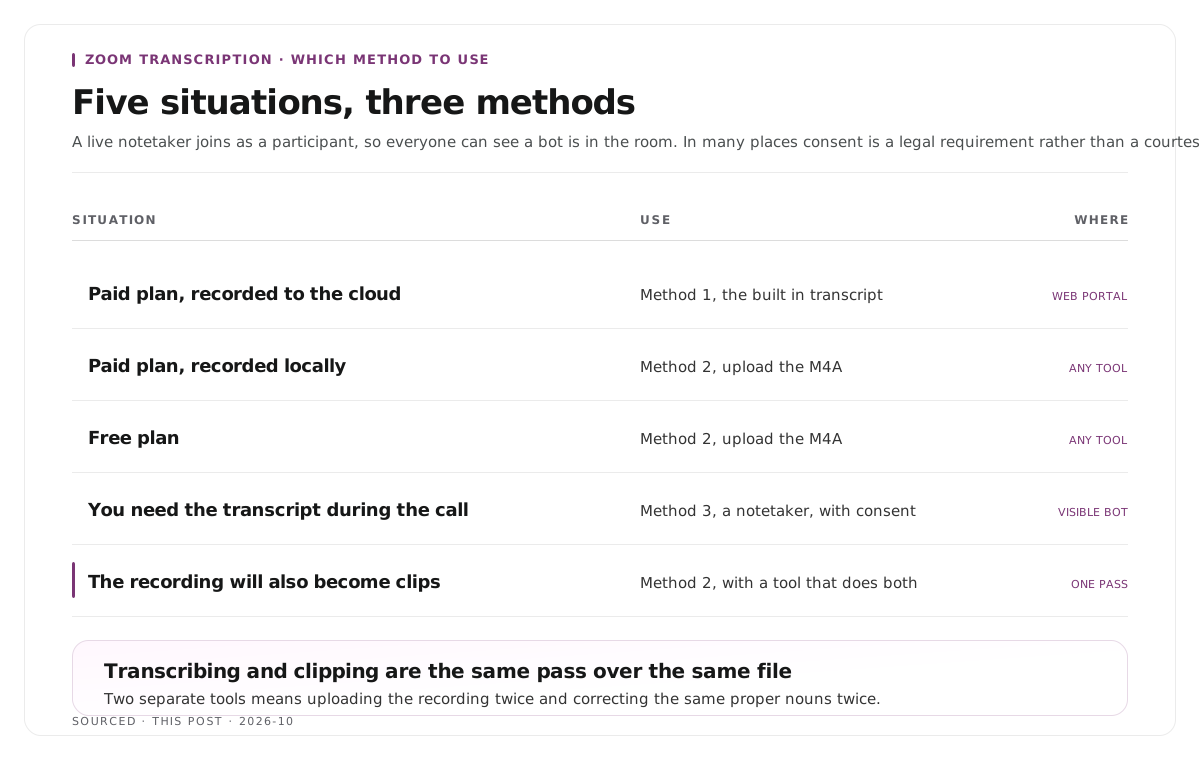
Which method to use
| Situation | Use |
|---|---|
| Paid plan, recorded to cloud | Method 1, built in transcript |
| Paid plan, recorded locally | Method 2, upload the M4A |
| Free plan | Method 2, upload the M4A |
| Need the transcript during the call | Method 3, with consent |
| Recording will also become video clips | Method 2, and pick a tool that does both |
That last row is worth expanding on. If the meeting is a webinar, a panel or an interview that will produce short form video, transcribing and clipping are the same pass over the same file. Doing them in two separate tools means uploading the recording twice and correcting the same proper nouns twice.
The conversion side of that is covered in the best tools to convert Zoom recordings to Shorts, and the remote recording quality decisions that affect transcription accuracy are in how to record a podcast remotely.
Making the transcript actually useful
A raw meeting transcript is a wall of text. Three cheap steps turn it into something people use.
Correct the recurring terms first. Your company name, product names and the acronyms your team uses will be wrong in every transcript until you fix them. Keep a list and apply it every time.
Add or verify timestamps at speaker changes. Without them nobody can check a line against the recording, and nothing can be located later.
Pull the decisions and actions to the top. Nobody reads a fifty minute transcript. A short block of what was decided and who owns what, with timestamps pointing into the detail, is what makes the document survive past the day.
If the recording is going to produce content as well as notes, the chapter approach in how to create video chapters from a transcript applies directly.
Worked example: the transcript that did not exist
This is an invented example, not measured data.
A team records a sixty minute customer research call on Zoom and plans to transcribe it afterwards. The account is paid, so transcription is assumed to be covered.
The call was recorded locally, because that is the default on the host's machine. No transcript is generated, and the discovery happens two days later when someone goes looking for it.
The recovery is straightforward, uploading the M4A to a transcription tool, and takes about ten minutes. The cost was the two days of assuming the work was done, plus a meeting where someone quoted the call from memory and got a number wrong.
The fix is a one line check before any call that matters: confirm the recording is going to the cloud.
Where Montage fits
Montage is not a meeting transcription tool. It does not join calls, does not produce meeting notes, does not summarise decisions and has no live notetaker.
It transcribes as the first stage of turning a long recording into publishable video. Upload a Zoom recording, up to 20GB at 4K, and it returns a timestamped transcript alongside 8 to 10 scored clip candidates, each trimmable by editing the transcript text, with branded captions and vertical reframing applied, exporting as MP4 for social or XML, FCPXML and JSON for an editor.
That is the right tool only when the recording is a webinar, panel or interview destined for an audience. For an internal standup you want meeting notes, which is a different product category entirely.
To try it on one recording, use the podcast clip finder, and the pipeline behind the clip selection is explained in how AI video clipping works.
Limitations and troubleshooting
Audio transcript is not in my settings. The account is on the Basic free plan. The setting does not exist there, and no configuration reveals it.
I enabled it and still got no transcript. The meeting recorded locally rather than to the cloud. Upload the M4A file to a transcription tool instead.
The transcript exists but has no speaker names. Zoom labels by participant name where it can, and struggles when several people share a device or join by phone. Correct the labels manually in the editor.
Every acronym is wrong. Normal. Keep a term list and apply the same corrections each time rather than treating it as a new problem every meeting.
Two people spoke at once and that section is unusable. Overlapping speech is the hardest case for any transcription. Mark it rather than inventing a clean version.
The file is too large to upload. Upload the M4A audio file rather than the MP4. It is a fraction of the size and produces the same transcript.
Frequently asked questions
Can you transcribe a Zoom meeting for free?
Not using Zoom's built in transcription, which requires a paid plan. You can record locally on any plan and upload the resulting audio file to a separate transcription tool, which works on free accounts.
Why is there no audio transcript on my Zoom recording?
Either the account is on the Basic free plan, or the meeting was recorded locally rather than to the cloud. The built in transcript needs both a paid plan and a cloud recording.
Where do you find the transcript after a Zoom meeting?
In the Zoom web portal under Recordings. Select the meeting and click Audio transcript to view, edit and download it.
Should you upload the MP4 or the M4A to a transcription tool?
The M4A, when the tool accepts audio. The transcript is generated entirely from sound, so the video file adds size without adding accuracy.
Is it legal to transcribe a Zoom meeting?
Recording and transcription consent rules vary by jurisdiction and in many places consent from all participants is required. Zoom notifies participants when recording starts, and a visible notetaking bot is a separate disclosure decision.
Does Montage transcribe Zoom meetings?
It transcribes recordings as the first step of producing video clips. For meeting notes, summaries or action items, a dedicated meeting tool is the right choice.