How to Record a Teams Meeting and What to Do With the File
How to record a Microsoft Teams meeting, who is allowed to, where the file is saved, and what to do with the recording once the meeting is over.
How to record a Microsoft Teams meeting, who is permitted to start one, where the file ends up depending on the meeting type, and the part most guides stop short of, which is what the recording is actually for.
To record a Teams meeting, open More actions in the meeting controls, select Record and transcribe, then Start recording and confirm. Everyone in the meeting is notified automatically, and only one person can record at a time. Where the file lands depends on the meeting type, not on who pressed record.
The useful question is not "how do I press record?" That part takes four clicks. It is "who is going to need this file, and will they be able to find it?" Most meeting recordings are never watched again, and the reason is almost always that nobody could locate them or nobody knew what was inside.
Before you start: who is allowed to record
This catches people more often than the mechanics do.
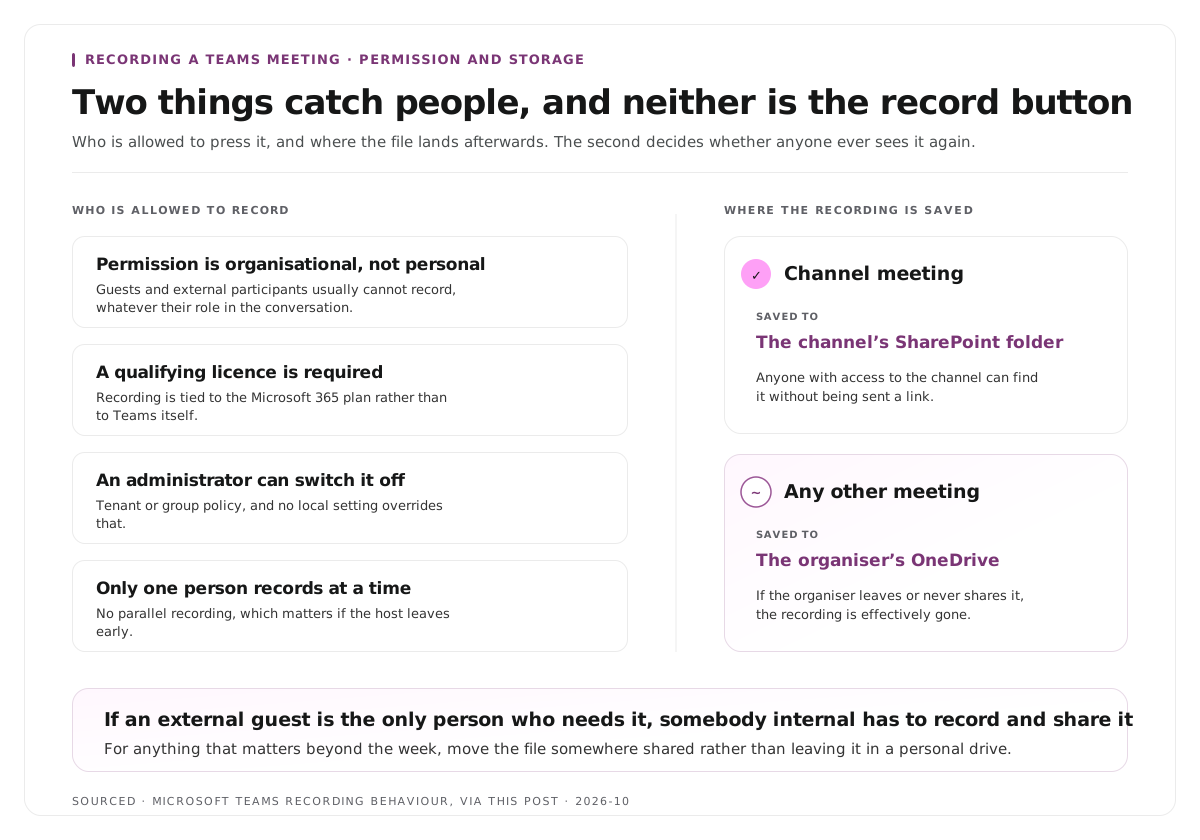
Permission is organisational, not personal. Typically the meeting organiser, or someone from the same organisation with the appropriate policy permissions, can record. Guests and external participants usually cannot, regardless of their role in the conversation.
A qualifying licence is required. Recording is tied to the Microsoft 365 plan rather than to Teams itself, and plans such as Enterprise E3 or Business Premium carry it. If the option is missing entirely, the licence is the first thing to check rather than the settings.
Your administrator can switch it off. Policy can disable recording for the whole tenant or for specific groups, and no local setting overrides that.
Only one person records at a time. A second person cannot start a parallel recording, which matters if the host leaves early and someone else expected to take over.
The practical consequence is worth planning around. If an external guest is the only person who needs the recording, somebody internal has to start it and share it afterwards.
How to record
- Start or join the meeting.
- In the meeting controls, select More actions.
- Choose Record and transcribe, then Start recording.
- Select Confirm.
Everyone in the meeting is notified automatically when recording begins. That notification is a feature rather than an inconvenience, and in many jurisdictions participant awareness is a legal requirement rather than a courtesy.
To record audio only, which produces a much smaller file and is often all you need for notes, take the same path and then open More options. From the Choose what to record dropdown, select Audio only.
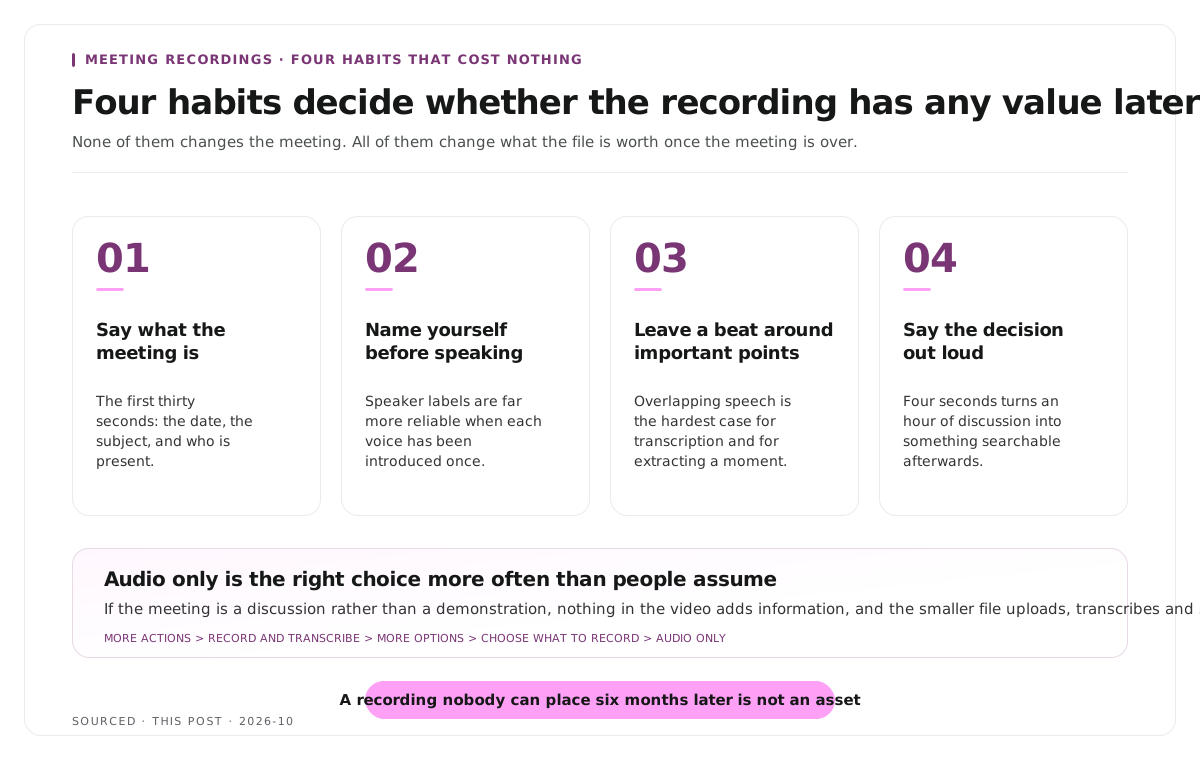
Audio only is the right choice more often than people assume. If the meeting is a discussion rather than a demonstration, nothing in the video adds information, and the smaller file is faster to upload, transcribe and store.
Where the recording is saved
This is the part that generates the most confusion, because the answer changes by meeting type rather than by any setting you chose.
| Meeting Type | Saved To |
|---|---|
| Channel meeting | The channel's SharePoint folder |
| Any other meeting | The meeting organiser's OneDrive for Business |
Two consequences follow.
A channel meeting recording is visible to the channel. Anyone with access to that channel can find it without being sent a link, which is usually what you want for a team discussion.
Every other recording sits in one person's OneDrive. If the organiser leaves the company, goes on leave, or simply never shares it, the recording is effectively gone. For anything that matters beyond the week, move it somewhere shared rather than relying on a personal drive.
That second point is the single most common reason a recording that was made is never used again.
Recording so the file is usable afterwards
Four habits cost nothing during the meeting and determine whether the recording has any value later.
Say what the meeting is at the start. The first thirty seconds should state the date, the subject and who is present. A recording that opens mid sentence is one nobody can place six months later, and the file name alone rarely carries enough.
Ask people to say their name before speaking the first time. Transcription and any later editing both depend on being able to tell voices apart, and the automatic speaker labels are far more reliable when each voice has been introduced.
Leave a beat before and after important points. Overlapping speech is the hardest case for transcription, and it is also what makes a passage impossible to extract cleanly later.
Say the decision out loud. "So the decision is we are moving the launch to March" takes four seconds and turns an hour of discussion into something searchable. Without it, somebody has to watch the whole recording to find out what was agreed.
If the meeting involves several people talking over each other, which most do, the downstream difficulty is covered in how to clip multi speaker panel discussions without losing context.
What to do with the recording
This is where most guides stop and where the actual value is.
For internal meetings, the recording is a reference. What makes it usable is a short written summary posted alongside it with timestamps pointing at the decisions. Nobody rewatches an hour. People do click a timestamp.
For customer and research calls, the transcript is the asset rather than the video. It is searchable, quotable and can be read in a fraction of the time, and it is what lets you find the exact phrasing a customer used months later.
For webinars, panels and external presentations, the recording is raw material for content. A fifty minute session typically contains a handful of moments that stand alone and are worth publishing, and the workflow for that is in how to turn a webinar into 10 social clips.
For training and onboarding, chapters matter more than anything else, because the file will be used as a reference rather than watched end to end. Building them from the transcript is covered in how to create video chapters from a transcript.
The distinction that matters is between recordings that are evidence and recordings that are raw material. Evidence needs to be findable. Raw material needs to be processed, and if it is not processed within a week or two it almost never is.
Consent, retention and the part legal cares about
Notification is not the same as consent. Teams tells participants that recording has started. Whether that is sufficient depends on your jurisdiction and the nature of the meeting, and in some places explicit consent from every participant is required.
External participants change the calculation. A recording containing customers, candidates or partners is covered by different expectations than an internal standup, and often by contractual terms as well.
Recordings accumulate and are rarely deleted. A team recording every meeting generates a large volume of material containing names, opinions and commercially sensitive discussion, held indefinitely by default. That is a real exposure and it builds quietly.
Decide retention before you start recording habitually, not after a year of accumulation. Which meetings get recorded, how long the files are kept, and who can reach them are three separate decisions.
Worked example: the recording nobody could find
This is an invented example, not measured data.
A product team records a sixty minute planning meeting. The organiser starts the recording, the meeting runs well, and three significant decisions are made.
Six weeks later, a new engineer asks why a particular approach was chosen. The recording exists, in the organiser's OneDrive, because it was a scheduled meeting rather than a channel meeting. The organiser is on leave. Nobody else can reach the file.
When it is eventually recovered, it is sixty minutes long with no chapters, no summary and no transcript. Finding the relevant three minutes means watching most of it.
Nothing went wrong with the recording. Everything went wrong afterwards, and all of it was preventable by a channel meeting, a four line summary and one timestamp.
Where Montage fits
Montage is not a meeting tool. It does not join calls, does not take notes, does not produce action items and has no integration with Teams. For internal meeting notes and summaries, a dedicated meeting assistant is the right product.
Where it applies is the subset of recordings intended for an audience rather than for the record. Upload a webinar, panel or presentation recording, up to 20GB at 4K, and it returns a timestamped transcript alongside 8 to 10 scored clip candidates, each trimmable by editing the transcript text, with branded captions and vertical reframing applied, exporting as MP4 for social or XML, FCPXML and JSON for an editor.[1]
That is the right tool for a customer webinar and the wrong one for a weekly standup. The pipeline behind clip selection is explained in how AI video clipping works, and for teams running this at volume the operational side is in how to 10x your B2B video content without adding headcount.
Limitations and troubleshooting
The record option is missing entirely. Usually the licence rather than the settings. Recording is tied to the Microsoft 365 plan, and administrators can also disable it by policy.
A guest cannot start the recording. External participants generally cannot record. Someone internal has to start it and share the file afterwards.
Two people tried to record and only one worked. Only one recording can run at a time in a Teams meeting. If the host needs to leave, that is worth planning for rather than discovering.
The recording cannot be found. Check the meeting type. Channel meetings save to the channel's SharePoint folder, everything else to the organiser's OneDrive for Business.
The organiser has left the organisation. Their OneDrive content is subject to your retention policy, and recovery is an administrator task. This is the argument for moving anything important out of a personal drive promptly.
The file is enormous. Record audio only where the video adds nothing. A discussion with no screen sharing produces a far smaller and equally useful file.
Speaker labels in the transcript are wrong. Common when several people share a room and a single device, or when participants dial in. Asking people to introduce themselves once improves this noticeably.
Frequently asked questions
How do you record a Teams meeting?
Select More actions in the meeting controls, choose Record and transcribe, then Start recording, and confirm. All participants are notified automatically when recording begins.
Who can record a Teams meeting?
Typically the organiser or someone from the same organisation with the appropriate permissions. Guests and external participants usually cannot, and administrators can disable recording by policy.
Where are Teams recordings saved?
Channel meeting recordings go to the channel's SharePoint folder. All other meeting recordings go to the meeting organiser's OneDrive for Business.
Can you record a Teams meeting without everyone knowing?
No. Teams notifies all participants automatically when recording starts, and that notification cannot be suppressed.
Can you record audio only in Teams?
Yes. Take the same path to Start recording, then open More options and choose Audio only from the Choose what to record dropdown. The file is considerably smaller.
Why can only one person record a Teams meeting?
Teams permits a single recording per meeting. If the person recording leaves, the recording stops, so hand over deliberately rather than assuming someone else can start a second one.
Does Montage work with Teams recordings?
Montage processes recordings you upload rather than connecting to Teams. It is built for webinars, panels and presentations intended for an audience rather than for internal meeting notes.