How to Turn a Webinar Into 10 Social Clips: A B2B Workflow
A B2B workflow for turning one webinar recording into 10 social clips, covering which moments to cut, how to reframe slide heavy footage, and how to route clips to sales.
A workflow for converting one webinar recording into short form video for B2B distribution, covering which segments earn a clip, why slide heavy footage requires split screen rather than cropping, and how to route the output to a sales team.
To turn a webinar into social clips, transcribe the recording, extract the question and answer section first, cut segments of 30 to 60 seconds, reframe each according to what is on screen rather than applying one crop to everything, caption, then publish over three weeks.
The useful question is not "how do we get clips out of this webinar?" It is "which parts of this recording answer something a buyer actually asked?" In most webinars the answer is concentrated in fifteen minutes that marketing teams routinely discard.
Why the question and answer section is the asset
A webinar is the only recording most companies produce in which the audience states, on the record, what it wants to know.
The question and answer section is therefore a transcript of buyer objections in the buyer's own language. It is also, reliably, the part that gets cut, because it sits at the end and the energy is lower by then.
There is a commercial argument underneath this. A webinar consumes speaker preparation, promotion budget, platform cost and follow up time. It is watched live by a few hundred people and then archived. Ten clips drawn from the same hour continue running for months, reach people who would never register for a scheduled hour, and cost roughly ninety minutes of work.
Step 1: extract the question and answer section first
Open the transcript and go directly to the question and answer section before reviewing anything else.
For each question asked, mark the segment running from the question through to the end of the answer. Each becomes a clip whose title is the question, reproduced word for word.
That single decision produces three outcomes at once. The clips answer questions buyers demonstrably have. The titles are written for you. The output is material a sales team can send to an individual prospect who raises the same point next week.
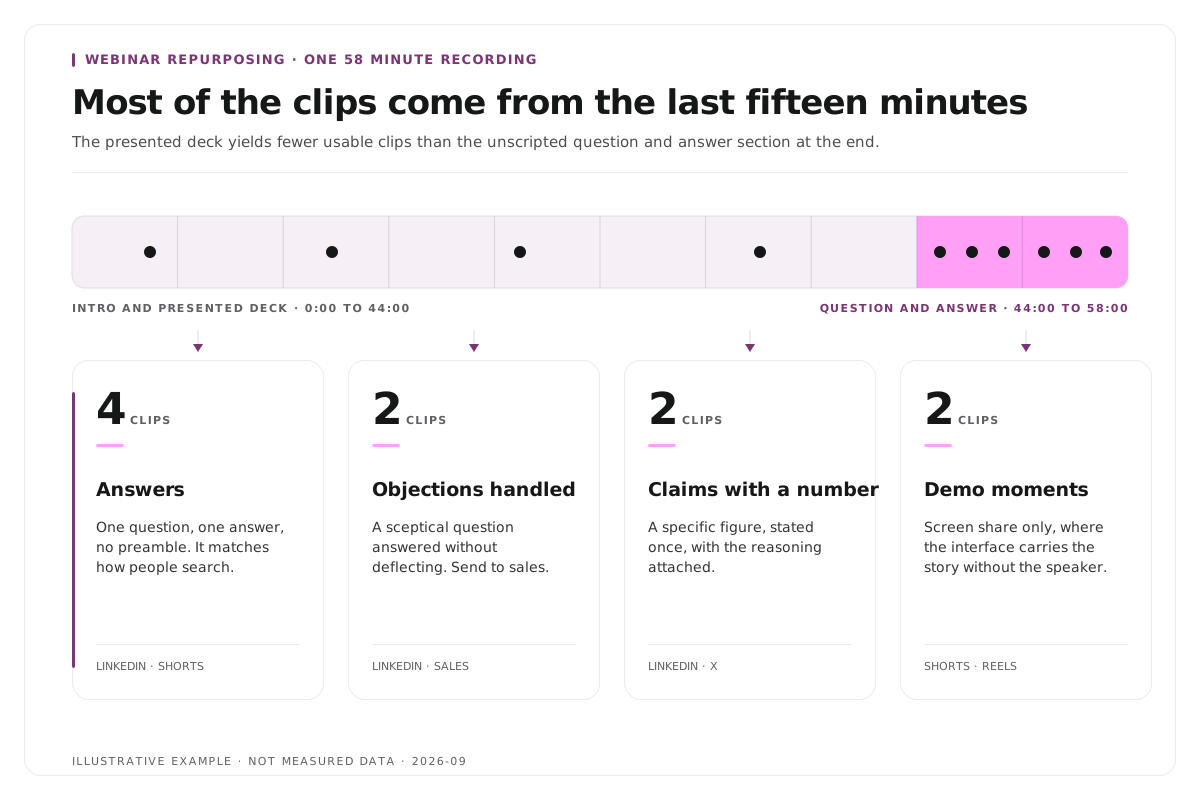
Fifteen minutes of question and answer typically yields three to five clips, which is the densest return in the recording.
Step 2: review the remainder for four segment types
| Week | Clips | Destination |
|---|---|---|
| 1 | Best question and answer clip, plus the demonstration | LinkedIn company page and the speaker's personal profile |
| 1 | Customer number clip | LinkedIn, YouTube Shorts |
| 2 | Two further question and answer clips | LinkedIn, X |
| 2 | Objection handling clip | LinkedIn, and the sales library |
| 3 | Disagreement or panel clip | LinkedIn, YouTube Shorts |
| 3 | Best performer, re cut | Paid distribution, if the organic result justifies it |
Publish from the speaker's personal profile as well as the company page. On LinkedIn, personal accounts consistently out distribute company pages, and a clip of a person is better served by that person's own account. The longer programme is described in the three week LinkedIn repurposing method and in executive video and personal branding on LinkedIn.
Then complete the step most teams omit. Place every clip in a shared folder the sales team can reach, named by the question it answers. An account executive asked "how does this handle multi speaker recordings?" should be able to send forty seconds of your own expert answering it rather than composing a paragraph. This is the highest return use of the material, and it appears in no marketing dashboard.
For conference and multi session footage rather than single webinars, see Montage for events and Montage for agencies. The wider argument for producing more video without adding headcount is in how to 10x your B2B video content.
Worked example: a 58 minute product webinar
This is an invented example, not measured data.
Consider a 58 minute product webinar with 43 minutes of presentation and 15 minutes of questions.
The presentation yields two clips. One is a 50 second demonstration segment. One is a 25 second passage containing a customer result. The remaining 41 minutes consist of slides being narrated, which produces nothing postable, because a voice reading a slide is not a moment.
The question and answer section yields five. Each runs 30 to 55 seconds, each carries its question as the title, and three of them are immediately more useful to the sales team than to the social feed.
The ratio is the point. Two clips from 43 minutes, five clips from 15 minutes. Marketing teams that review a webinar chronologically run out of attention before reaching the part that mattered.
Where Montage fits
Montage is useful when the recording is long, multi speaker and slide heavy, which is the shape webinar footage usually takes. It accepts files up to 20GB at 4K, which matters because webinar exports routinely exceed the limits imposed by other tools, returns 8 to 10 scored candidate clips rather than an unranked list, allows each to be refined by editing transcript text, applies branded captions, and exports MP4 for social platforms or XML, FCPXML and JSON for an editor.[2]
The judgement stays with the team. Montage does not determine which question deserves a clip, does not decide what your sales team should send, does not schedule posts, and does not publish to any platform. It produces an editable, exportable clip. Every decision after that is yours.
Limitations and troubleshooting
The webinar produced no usable clips. The recording is probably narrated slides throughout, with no demonstration and no live questions. That footage does not contain clips, and no tool creates them. Change the webinar format before changing the tooling.
The vertical crop hides the slide. Use a split layout rather than a crop, or keep the horizontal frame and letterbox it. Protecting a crop because the spoken moment is good produces an unreadable clip.
The Zoom file is too large to upload. Check the platform limit before re exporting. Long multi speaker sessions produce large files, and a re export at a lower bitrate is faster than repeatedly failing an upload.
The clips perform poorly on the company page. Republish from the speaker's personal profile. Distribution differs substantially between account types on LinkedIn.
Captions misname a customer or product. Correct the text before styling it, and maintain a term list that is checked against every webinar, because the same names recur.
Frequently asked questions
How many clips can one webinar produce?
Eight to twelve candidate segments from a 60 minute recording, of which six to eight are usually worth publishing. The question and answer section alone typically supplies three to five.
Which part of a webinar should be clipped first?
The live question and answer section. Each question is a documented buyer objection expressed in the buyer's own words, and it supplies the clip's title without rewriting.
How do I convert a Zoom recording into social clips?
Download the recording as an MP4 from the Zoom cloud, then process it with a tool that transcribes and reframes. Check the file size limit before uploading, because long multi speaker sessions produce large exports.
Should every webinar clip be vertical?
No. Crop speaker only segments to a vertical frame, use a split layout for slide heavy segments, and keep demonstrations horizontal and letterboxed. Forcing a demonstration into a vertical frame makes the screen content unreadable.
Where do B2B webinar clips perform best?
LinkedIn first, published from the speaker's personal profile as well as the company page, then YouTube Shorts. The highest return destination is not social at all. It is a shared clip library the sales team can draw from.
Can Montage publish clips to LinkedIn?
No. Montage produces exportable clips. Publishing and scheduling remain separate human actions.
If you have a webinar, conference session, panel or product demonstration and already know the kind of moment you want, use Montage to direct the first cut from your footage. You keep the final editorial call.
Sources
[1] https://support.google.com/youtube/answer/15424877 : Understand three-minute YouTube Shorts, YouTube Help
[2] https://montage.app : Montage