How to Record a Google Meet, Including Without Host Access
How to record a Google Meet, who is allowed to, where the file is saved, and the screen recording fallbacks when you do not have host permissions.
How to record a Google Meet using the built in recorder, who is permitted to start one, where the file is saved, and what to do when you are not the host.
To record a Google Meet, open the Activities menu at the bottom right of the call, select Recording, then Start recording and confirm at the consent prompt. Only the host or someone with host permissions can do this. The file saves to the meeting organiser's Google Drive.
The useful question is not "where is the record button?" It is "am I the host, and if not, what am I allowed to do?" Most of the difficulty with recording a Meet comes from permissions rather than from the mechanics, and the honest answer involves a conversation rather than a workaround.
Who can record
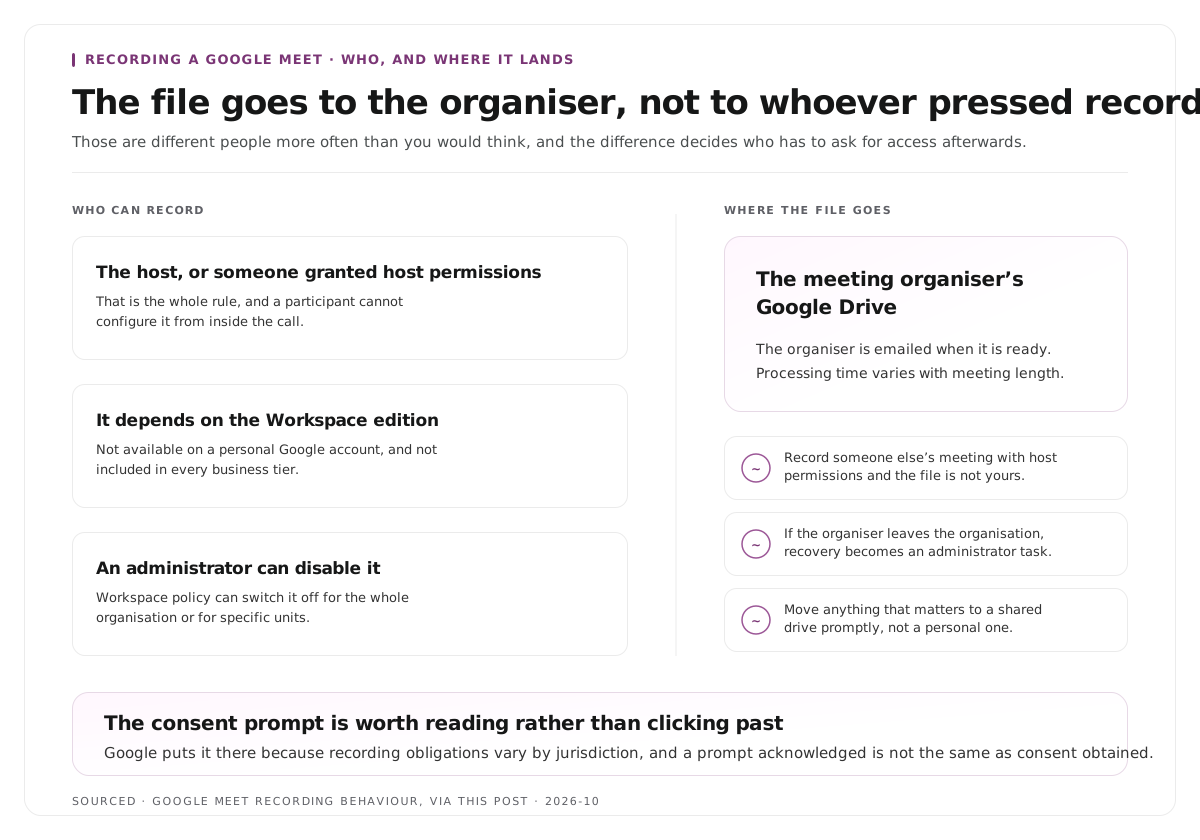
The host, or someone granted host permissions. That is the whole rule, and it is not configurable from inside the call by an ordinary participant.
The feature depends on the Google Workspace edition. Recording is not available on a personal Google account and is not included in every business tier. If the Recording option is absent from the Activities menu, the edition is the first thing to check rather than the settings.
An administrator can disable it. Workspace policy can switch recording off for the whole organisation or for specific units, and nothing local overrides that.
If you are an external guest in someone else's Meet, you cannot record it with the built in tool. The correct route is to ask the host, which is also the route that keeps you on the right side of the consent question.
How to record
- Join the meeting.
- Click Activities at the bottom right of the call.
- Select Recording.
- Click Start recording.
- A prompt appears reminding you to obtain consent from all participants. If you have, select Start.
To stop, click Meeting tools, select Recording, then Stop recording. The recording also stops automatically when all participants leave, which means forgetting to stop it is less costly than it sounds.
The consent prompt is worth reading rather than clicking past. Google puts it there because recording obligations vary by jurisdiction, and a prompt acknowledged is not the same as consent obtained.
Where the file goes
The recording is saved to the meeting organiser's Google Drive, not to the Drive of whoever pressed record if those are different people.
Two things follow from that.
If you record someone else's meeting with host permissions, the file is not yours. It lands with the organiser, and you may need to ask for access to the thing you recorded.
If the organiser leaves the organisation, the file goes with their account. Recovery becomes an administrator task. For anything that matters beyond the week, move it to a shared drive promptly rather than leaving it in a personal one.
Processing time varies with meeting length. A long call is not available the instant it ends, and the organiser receives an email when it is ready.
Recording without host permissions
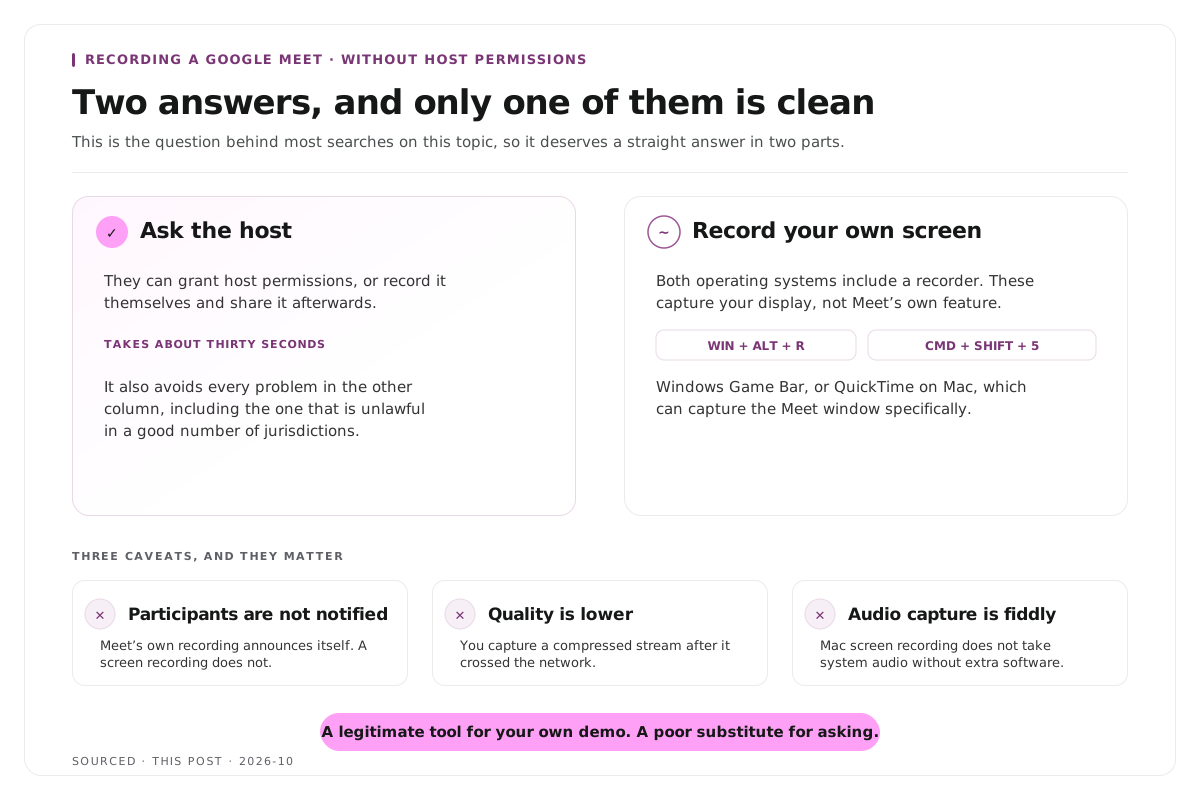
This is the question behind most searches on this topic, and it deserves a straight answer in two parts.
The legitimate answer is to ask the host. They can grant host permissions, or record it themselves and share it. This takes thirty seconds and avoids every problem below.
If you genuinely need to capture your own screen, both operating systems include a recorder, and these capture what is on your display rather than using Meet's recording feature.
On Windows, press Win + G to open the Game Bar overlay, then use the record button in the Capture widget, or press Win + Alt + R directly.
On Mac, open QuickTime Player and choose File, then New Screen Recording. Alternatively press Cmd + Shift + 5, which lets you select the Meet window specifically rather than the whole screen.
Three caveats apply to both, and they matter.
Participants are not notified. Meet's own recording announces itself. A screen recording does not, and in many jurisdictions recording a conversation without the knowledge of participants is unlawful rather than merely impolite.
Quality is lower. You are capturing a compressed video stream after it has arrived over the network, including every artefact the connection introduced. The same problem affects remote recording generally, as covered in how to record a podcast remotely.
Audio capture is fiddly. Mac screen recording does not capture system audio without additional software, which catches people out after the fact rather than during.
The short version: screen recording is a legitimate tool for capturing your own presentation or a demo, and a poor substitute for asking permission when other people are speaking.
Recording so the file is worth keeping
The same four habits that make any meeting recording usable apply here, and they cost nothing.
Open with what the meeting is. Date, subject, who is present. A recording that begins mid sentence is one nobody can place later.
Have people introduce themselves once. Speaker labelling in any transcript is substantially better when each voice has been named, and it helps anyone watching later.
Leave a beat around important points. Overlapping speech is the hardest case for transcription and the main reason a good moment cannot be extracted cleanly.
State decisions out loud. "The decision is we are moving the launch to March" takes four seconds and converts an hour of discussion into something searchable.
What to do with it afterwards
Recording is the easy part. Most recordings are never opened again, and the reason is almost always that nobody knew what was inside.
For internal meetings, post a short summary alongside the file with timestamps pointing at the decisions. Nobody rewatches an hour. People do click a timestamp.
For customer and research calls, the transcript is the asset rather than the video, because it can be searched and read in a fraction of the time.
For webinars and external sessions, the recording is raw material. A fifty minute session usually contains a handful of moments worth publishing, and the process is in how to turn a webinar into 10 social clips.
For training material, chapters matter more than anything else, since the file will be used as a reference rather than watched through. Building them from the transcript is covered in how to create video chapters from a transcript.
Worked example: the guest who could not record
This is an invented example, not measured data.
A consultant joins a client's Google Meet to deliver a workshop they will later turn into a training module. They assume they can record it.
They cannot. They are an external guest, the Recording option is not available to them, and they discover this in the first minute with twelve people waiting.
The workshop goes ahead unrecorded. Recreating it afterwards takes a half day of their own time and produces something worse than the live session, because the client questions that made it valuable are gone.
The fix was one line in the calendar invite the week before: ask the organiser to record it, or to grant host permissions. Thirty seconds of planning against half a day of rework.
Where Montage fits
Montage is not a meeting tool. It does not join calls, does not integrate with Google Meet, does not take notes and does not produce action items. For meeting summaries and internal notes, a dedicated meeting assistant is the right product.
Where it applies is the subset of recordings meant for an audience. Upload a webinar, workshop or presentation recording, up to 20GB at 4K, and it returns a timestamped transcript alongside 8 to 10 scored clip candidates, each trimmable by editing the transcript text, with branded captions and vertical reframing applied, exporting as MP4 for social or XML, FCPXML and JSON for an editor.[1]
One practical note connects to this page. Screen recorded calls are compressed before you capture them, so the picture quality is already set by the time the file exists. If a session is intended to produce content, recording it properly matters more than anything done afterwards, and the editing sequence is covered in how to edit an interview video.
To try it on one recording, use the podcast clip finder.
Limitations and troubleshooting
There is no Recording option in Activities. Either you are not the host, or the Workspace edition does not include recording, or an administrator has disabled it. Check in that order.
I recorded it but cannot find the file. It saves to the meeting organiser's Drive rather than yours, even if you pressed record. Ask the organiser.
The recording is not in Drive yet. Processing takes time proportional to meeting length, and the organiser receives an email when it is ready.
Screen recording captured video but no audio. Common on Mac, where system audio is not captured by default and needs additional software. Test before the session rather than discovering it afterwards.
The quality is poor compared with the live call. Screen recording captures the compressed stream that arrived over your connection, including any degradation. There is no way to recover detail that was lost in transit.
The organiser has left the company. The file sits in their account and recovery becomes an administrator task, which is the argument for moving anything important to a shared drive promptly.
Participants objected after the fact. The consent prompt acknowledges a requirement, it does not satisfy one. Say at the start that the session is being recorded and why.
Frequently asked questions
How do you record a Google Meet?
Click Activities at the bottom right, select Recording, then Start recording, and confirm at the consent prompt. Stop via Meeting tools, Recording, Stop recording, or let it stop automatically when everyone leaves.
Can you record a Google Meet if you are not the host?
Not with the built in recorder. Ask the host to record it or to grant you host permissions. Screen recording your own display is technically possible but does not notify participants.
Where are Google Meet recordings saved?
In the meeting organiser's Google Drive, not in the Drive of whoever started the recording if those are different people.
Why is the recording option missing from Google Meet?
Either you lack host permissions, or your Google Workspace edition does not include recording, or an administrator has disabled it by policy. Personal Google accounts do not have it.
Is it legal to screen record a Google Meet?
It depends on your jurisdiction, and in many places recording a conversation without participants knowing is unlawful. The built in recorder notifies everyone; a screen recorder does not.
How long does a Google Meet recording take to appear?
It varies with the length of the meeting. The organiser receives an email when the file is ready in Drive.
Does Montage record Google Meet calls?
No. Montage processes recordings you upload and is built for webinars, workshops and presentations intended for an audience rather than for internal meeting capture.