How to Live Stream an Event
A production plan for streaming an event, the equipment and connection that actually matter, what to test in advance, and how to get content out of it afterwards.
A production plan for streaming an event, the three things that cause most failures, what to test before the day, and the step almost every organiser skips, which is getting content out of the recording afterwards.
To live stream an event you need a camera, a dedicated audio source, streaming software, a stream key from your platform, and a wired internet connection with enough upload bandwidth. Audio and connection cause nearly every failure. The camera almost never does.
The useful question is not "what gear do I need?" It is "what happens when something fails during the stream?" You cannot stop and restart a live event, so the plan matters more than the equipment.
Decide these before anything else
What the stream is for. Reach, revenue, archive or accessibility. A free public stream for reach and a paid gated stream are different productions, and the decision affects platform, registration and effort.
Who it is for and roughly how many. This drives platform choice more than anything technical does.
Whether the room audience or the remote audience takes priority. You cannot fully optimise for both. A speaker who plays to the room reads as distant on stream, and one who plays to camera feels odd in the room. Decide and tell the speakers.
Whether you are keeping the recording. If yes, that changes decisions during the event, mostly around framing and audio capture, and it is the difference between a stream that ends and an asset that keeps working.
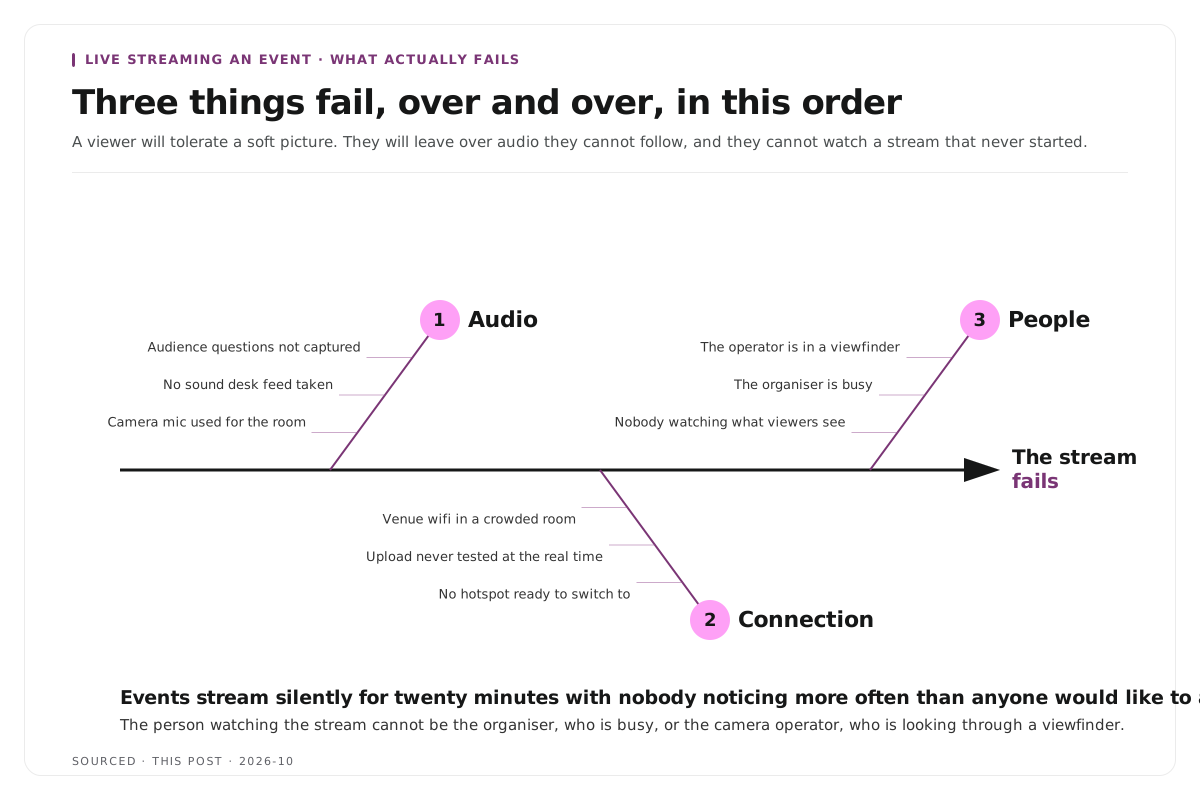
The three things that actually fail
Over and over, in this order.
Audio. More events are ruined by sound than by anything else. A viewer will tolerate a soft picture and will leave over audio they cannot follow.
Never use the camera microphone for a room. It records the room, which means air conditioning, chairs and the person nearest the camera. Take audio from the venue's sound desk where one exists, which is usually a single cable and the highest value connection you will make all day.
Where there is no desk, put a lavalier or a handheld on each speaker. Microphone per speaker is the same principle that applies to any multi person recording.
Capture audience questions. A roving microphone, or the host repeating the question. A panel where remote viewers hear answers to inaudible questions is a bad experience, and it also makes the recording much less useful afterwards.
Connection. Upload bandwidth, not download, is what matters, and venue wifi is the most common point of failure.
Use a wired connection. Ethernet, always, where it is physically possible. Wifi in a room full of people with phones is contested in a way it is not when you test at 9am in an empty hall.
Test upload at the venue, at the time of day, with the room occupied if you can. A test in an empty room tells you very little.
Have a backup. A phone hotspot on a different network, ready to switch to. Streaming software can usually be reconfigured mid event, and it is a far better position than going dark.
People. Somebody has to watch the stream while the event runs. Not the organiser, who is busy, and not the camera operator, who is looking through a viewfinder.
That person watches what viewers see, monitors chat, and notices if audio has dropped out. Events stream silently for twenty minutes with nobody noticing more often than anyone would like to admit.
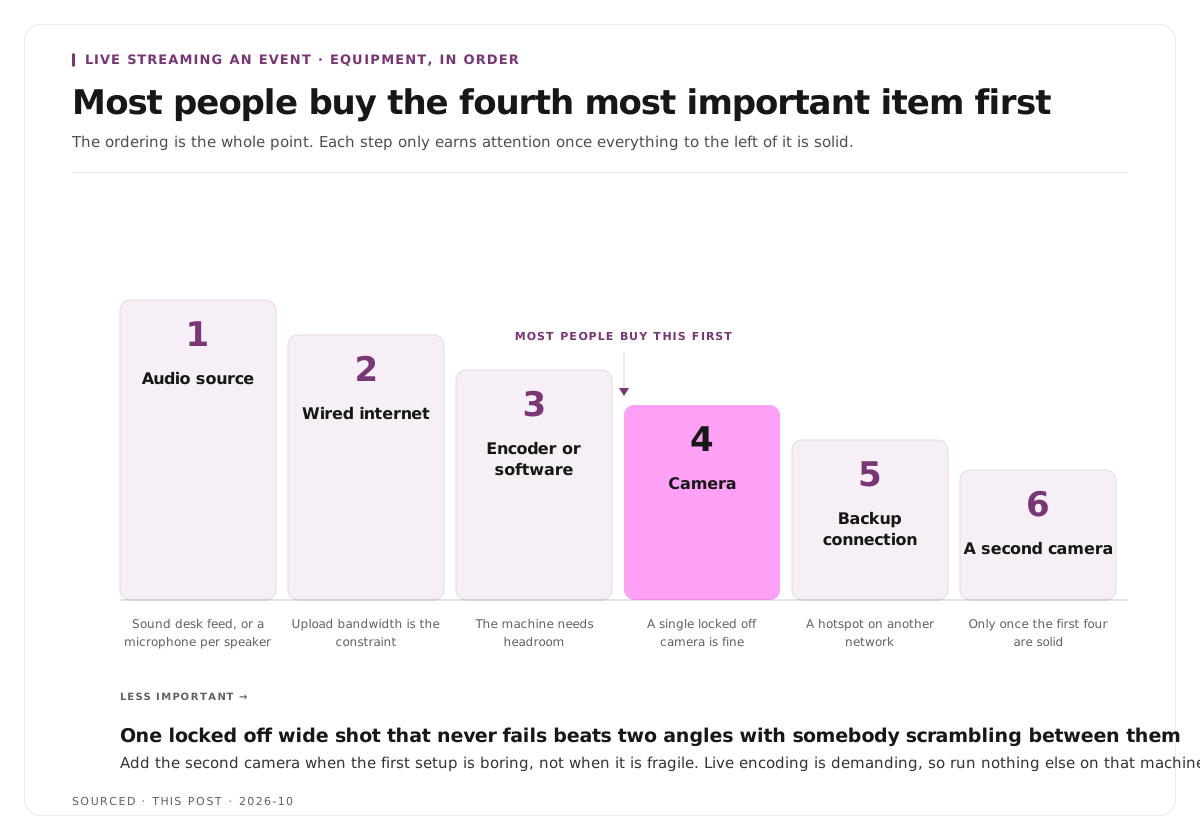
Equipment, in order of importance
| Priority | Item | Note |
|---|---|---|
| 1 | Audio source | Sound desk feed, or a microphone per speaker |
| 2 | Wired internet | Upload bandwidth is the constraint |
| 3 | Encoder or streaming software | The machine doing the work needs headroom |
| 4 | Camera | A single locked off camera is fine to start |
| 5 | Backup connection | A hotspot on another network |
| 6 | A second camera | Only once the first four are solid |
The ordering is the point. Most people buy the camera first, which is the fourth most important item on the list.
On the computer, live encoding is demanding and an underpowered machine causes dropped frames that look like connection problems and are not. Run nothing else on it.
On cameras, one locked off wide shot that never fails beats two angles with somebody scrambling between them. Add the second camera when the first setup is boring rather than when it is fragile.
Test properly, not notionally
Run a full rehearsal at the venue. Not a check that the camera turns on. An actual stream to a private or unlisted destination, with audio from the real source, for at least ten minutes.
Watch the test stream on a different device, on mobile data rather than the venue network. What you see in the software is not what viewers see.
Check audio levels on headphones, not laptop speakers. Clipping and hum are both hard to hear otherwise and both ruin a recording permanently.
Test the handover. If you are switching between a presentation and a camera, do it in rehearsal. Live transitions are where things break.
Confirm the stream key and destination the day before. Keys expire and get regenerated, and discovering that fifteen minutes before a keynote is avoidable.
During the event
Start the stream early. Five to ten minutes of a holding frame before the content begins. It lets viewers arrive, confirms the stream is live, and gives you time to fix something before anyone important is speaking.
Have the host acknowledge the remote audience. One line at the start. It costs nothing and makes a stream feel attended rather than observed.
Read audience questions aloud. For both the room and the recording.
Note timestamps when something lands. This is the step that pays off later and almost nobody does it. A single line in a notes file every time a speaker says something strong turns a four hour recording into a short list.
Do not stop and restart the stream between sessions unless you have planned for it. Each restart risks not coming back.
Afterwards is where the value is
An event is one day. The recording can work for months, and this is the part most organisers under-use.
A conference recording typically contains a handful of genuinely strong moments per session: the answer that surprised people, the specific number a speaker gave, the disagreement in a panel. Published as clips, those reach people who were never going to attend, which is a much larger group than those who did.
The practical workflow is the same as any long recording. Read the transcript rather than scrubbing the footage, mark passages that stand alone, and cut from there. The webinar version of this is in how to turn a webinar into 10 social clips, and the general case in what is video repurposing.
Two things from the event itself make this much easier. Audio captured per speaker rather than from the room, because a clip with room echo is unusable even when the moment is excellent. And framing that allows a vertical crop, which mostly means getting close enough to the speaker that a 9:16 crop still contains a person rather than a stage.
For multi speaker panels, which most events contain, the specific difficulty is covered in how to clip multi speaker panel discussions without losing context.
Worked example: two conference streams
This is an invented example, not measured data.
Two organisers stream a one day conference with six sessions.
The first uses camera audio from the back of the room, venue wifi, and one person doing everything. The stream drops twice. The recording has room echo throughout and audience questions are inaudible. Afterwards nobody can use it for anything, so it is uploaded whole and watched by eleven people.
The second takes a feed from the sound desk, runs ethernet, and has one person watching the stream whose only job that is. They note fourteen timestamps during the day. The stream is uninterrupted. Within two weeks the recording has produced nine clips, three of which outperform anything the organisation posted that quarter.
Same event, same sessions. The difference was audio, connection, a dedicated person, and fourteen lines in a notes file.
Where Montage fits
Montage does not stream, has no live capability and no part in running the event. Everything about the broadcast itself is handled by streaming software and the production setup.
Where it applies is the recording afterwards. Upload the session recordings, up to 20GB at 4K, which matters because event footage is long and high resolution, and it returns a timestamped transcript alongside 8 to 10 scored clip candidates per recording, each trimmable by editing the transcript text, with branded captions and vertical reframing applied, exporting as MP4 for social or XML, FCPXML and JSON for an editor.
The constraint worth knowing in advance is that it cannot repair what the room did to the audio, and it cannot add framing that the camera did not capture. Both of those are decided on the day, which is why they sit in the equipment section of this page rather than being treated as fixable later.
For organisations running events regularly, the wider setup is on the Montage for events page, and you can try it on a single session with the podcast clip finder.
Limitations and troubleshooting
The stream keeps dropping. Almost always upload bandwidth on contested wifi. Switch to ethernet, lower the bitrate, and have a hotspot ready.
Viewers say the audio is bad. The camera microphone is picking up the room. Take a feed from the sound desk, or put a microphone on each speaker.
Remote viewers cannot hear questions from the floor. No roving microphone, and the host is not repeating questions. Fix the second one at minimum, since it costs nothing.
The picture stutters. Usually the encoding machine rather than the connection. Close everything else, lower the output resolution, and check the software is not warning about dropped frames.
Nobody noticed the stream had failed. No one person was assigned to watch it. This is a staffing decision rather than a technical one.
The recording is unusable for clips. Typically room audio and a wide stage shot. Both are decided during the event and neither can be repaired afterwards.
Sessions overran and the stream was cut mid talk. Build buffer into the schedule and avoid stopping and restarting between sessions where you can.
Frequently asked questions
What do you need to live stream an event?
A camera, a dedicated audio source such as a sound desk feed or a microphone per speaker, streaming software, a stream key from your platform, and a wired internet connection with sufficient upload bandwidth.
What causes most live stream failures?
Audio and connection, in that order. Camera problems are rare by comparison. Using camera microphones for room sound and relying on venue wifi account for most failed event streams.
How much upload speed do you need to live stream?
Enough headroom above your chosen output bitrate that contention does not break the stream. Test at the venue at the time of day with the room occupied, since an empty room test is not representative.
Should you use the venue wifi to stream?
No, where ethernet is possible. A room full of people with phones contests wifi in a way an empty hall does not, and the failure happens exactly when the audience arrives.
Do you need two cameras to stream an event?
No. One reliable locked off shot is better than two angles with nobody to operate them. Add the second camera once audio, connection and encoding are solid.
What should you do with the recording afterwards?
Pull clips from it. A conference session usually contains a handful of moments that stand alone, and those reach people who were never going to attend, which is a far larger audience than the room held.
Does Montage handle live streaming?
No. Montage processes recordings after the event. Streaming itself is handled by your streaming software and production setup.