How to Clip a YouTube Video: Five Methods for 2026
Five ways to clip a YouTube video in 2026, from native Clips at 5 to 60 seconds, URL timestamps and Studio trim, through to AI clip makers. Step by step.
A practical guide to the five ways of clipping a YouTube video, covering the native Clip tool, timestamped links, the Studio trim editor, desktop editing, and AI clip makers for long recordings.
To clip a YouTube video you are watching, use YouTube's native Clip button, which produces a shareable segment of 5 to 60 seconds without downloading anything.[1] To clip your own video for Shorts, TikTok or Reels, either trim it inside YouTube Studio or prepare a separate vertical file.
The useful question is not "how do I cut this video?" It is "what is this clip for?" The answer decides the method, and choosing the method first is how people end up downloading a two hour recording to extract eleven seconds.
Pick the method before you open anything
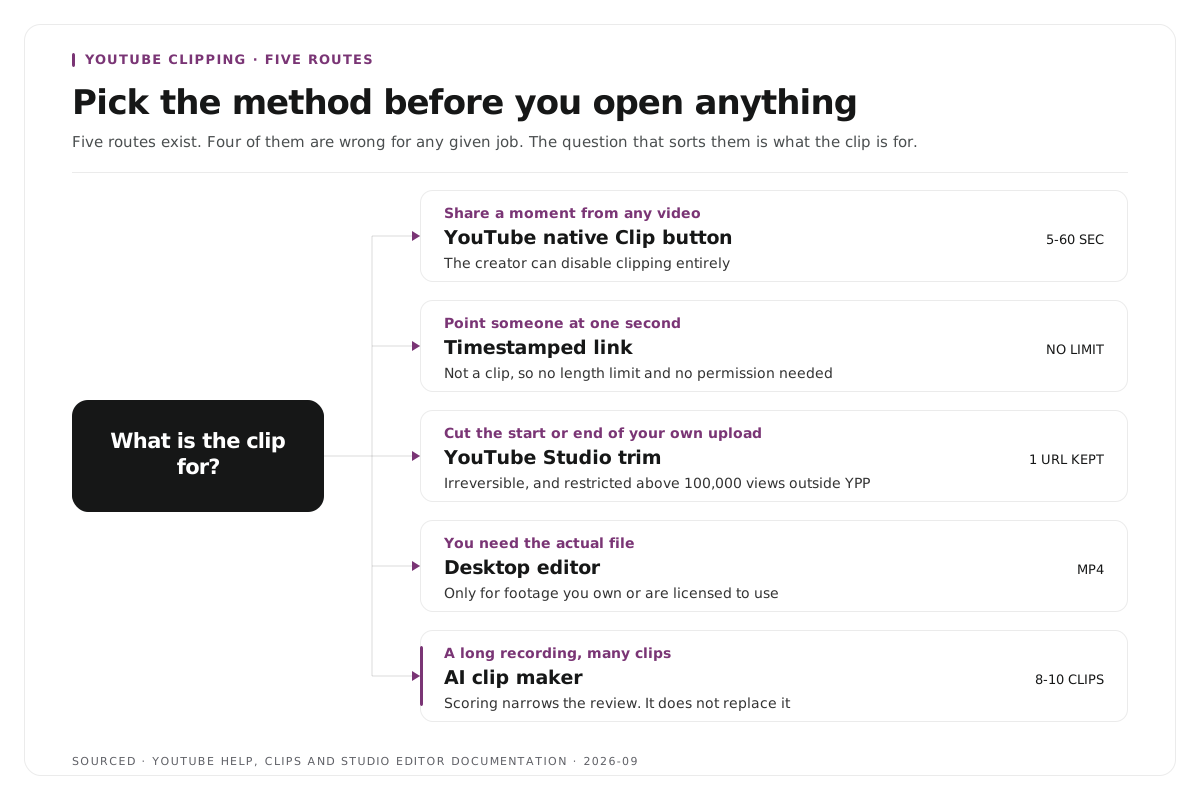
Five routes exist. Each solves a different problem, and four of them are wrong for any given job.
- Route: YouTube native Clips
- Use it when: You want to share a moment from any video, including one you do not own
- What to know: The segment must be between 5 and 60 seconds, the clip plays inside the original video, and the creator can disable clipping entirely.[1]
- Route: Timestamped link
- Use it when: You only need the viewer to start at a particular second
- What to know: There is no length limit and no permission requirement, because it is a link rather than a clip.
- Route: YouTube Studio trim
- Use it when: You want to cut the start or end of your own upload without losing the URL, the view count or the comments
- What to know: Editing is restricted above 100,000 views for channels outside the YouTube Partner Program, and the edit cannot be reversed.[2]
- Route: Desktop editor
- Use it when: You need the actual file for a reel, a compilation or a presentation
- What to know: You need the source video, which means your own footage or footage you have explicit permission to use.
- Route: AI clip maker
- Use it when: The source runs 20 minutes or longer and you need several clips rather than one
- What to know: A separately edited square or vertical upload can run up to three minutes as a Short.[3]
Choose the route that serves the clip rather than the one with the most controls.
Method 1: the native Clip button
This is what most people mean by clipping a YouTube video. The clip lives on YouTube and plays inside the original upload, so the creator still receives the view.
On desktop:
- Open the video and sign in, because clipping requires a signed in account.
- Click the scissors Clip icon in the row beneath the player, next to Share and Download.
- Drag the selection box to your segment, which must run between 5 and 60 seconds.
- Name the clip. That name becomes the title people see when you share it.
- Click Share Clip and copy the link.
On mobile, tap the Clip icon in the row under the video, drag the selector, name it, then share. Saved clips appear under Library, then Your Clips.[1]
Two limits apply. The creator can disable clipping, and there is no workaround when they have. Clips are always 5 to 60 seconds, so a 90 second moment cannot be clipped this way at all.
Method 2: the timestamped link
This is not a clip, but it solves the same problem most of the time, and it carries no length limit and needs nobody's permission.
Pause at the moment you want. Right click the player and choose Copy video URL at current time, or click Share and tick Start at. You can also append the parameter by hand, where ?t=125 opens the video at two minutes and five seconds.
Method 3: trim your own video in YouTube Studio
For videos on your own channel, you can cut without re uploading. The URL, the view count and the comments all survive the edit.
- Open YouTube Studio, then Content, and select the video.
- Open the Editor tab in the left sidebar.
- Choose Trim and cut, then New cut, drag the handles, then Preview.
- Click Save. The change takes a few hours to appear publicly.
Two constraints are worth reading before you save. YouTube states that "for unedited video with over 100,000 views, you may not be able to save changes to it, except to blur faces", although that restriction does not apply to channels in the YouTube Partner Program.[2] Separately, since June 2025 the Revert to original option no longer reverses edits made in the Studio Editor, so the preview is your only check.[2]
Method 4: download and cut in a desktop editor
Use this when you need the file itself. Download your own upload from YouTube Studio, then Content, then the three dot menu and Download. Open it in DaVinci Resolve, CapCut, Premiere Pro or Final Cut, set your in and out points, and export.
Only do this with your own footage or with content you have explicit permission to use. Downloading other people's videos generally breaches YouTube's Terms of Service, and permission to watch something is not permission to republish it.
Expect 15 to 45 minutes per clip once reframing and captions are included. If your finishing happens in Final Cut, we compared the options in the best AI clip makers for Final Cut Pro editors.
Method 5: AI clip makers, for long recordings
When the source runs 30 minutes or three hours, so a podcast, a webinar, a panel, a conference talk or a livestream, the first four methods stop working. You are no longer looking for one moment. You are looking for the eight moments worth posting, and locating those by scrubbing is where whole afternoons go.
An AI clip maker transcribes the recording, scores segments on how well they stand alone, cuts the best ones, reframes 16:9 into 9:16, and burns in captions.
Five things are worth checking before choosing one:
- How many clips it returns. Thirty unranked clips is not a shortlist. It is homework.
- The maximum file size. Conference and webinar exports break 2GB to 4GB limits routinely.
- Whether it exports a timeline. XML and FCPXML let an editor finish the job in Premiere or Final Cut.
- How credits are charged. Some tools bill by source length rather than output, which becomes expensive on long recordings.
- Whether you can edit by transcript. Deleting words is faster than dragging timeline handles.
Worked example: a 47 minute panel recording
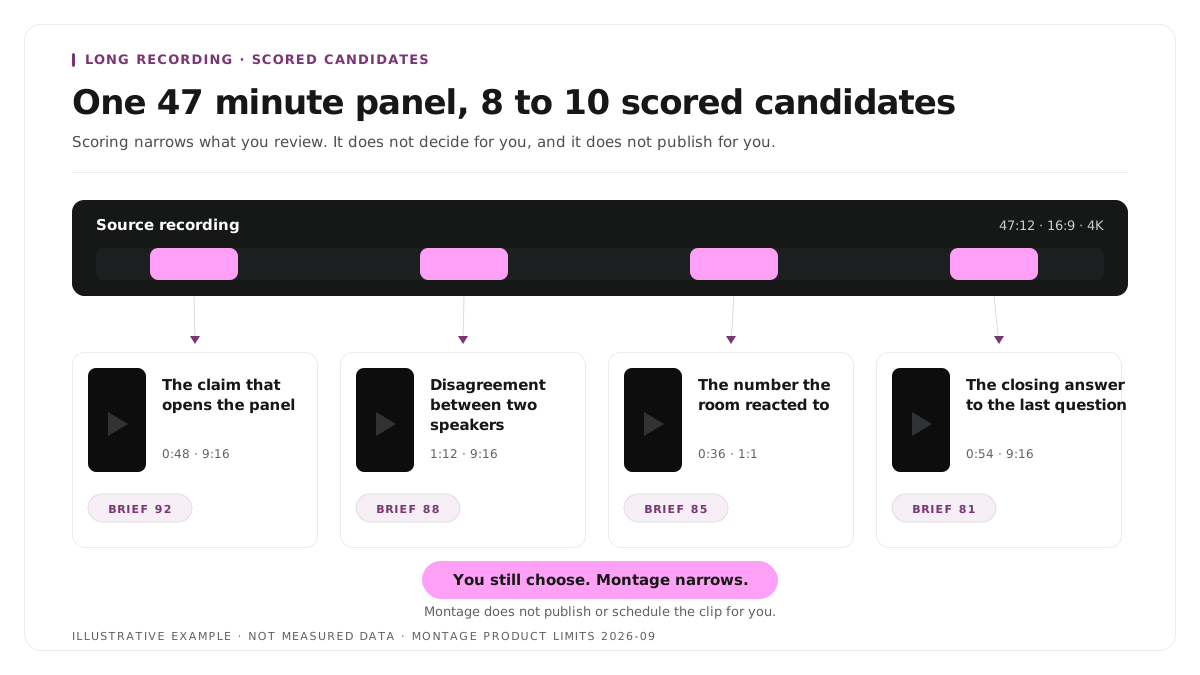
This is an invented example, not measured data.
Consider a 47 minute conference panel with four speakers. The loudest moment is a speaker saying "and that is why the whole category is broken." Clipping from there produces a fragment, because the viewer never learns which category or what broke it.
The stronger selection begins 11 seconds earlier and includes the exchange that provoked it, so the clip carries the disagreement, the claim and the reason. It runs 38 seconds. Native Clips would handle that length, but the panel is horizontal and four people share the frame, so a native clip is unusable as a Short without reframing. That is the point at which methods 1 to 4 stop being options and method 5 becomes the only route that produces something postable.
The lesson is not the duration. It is that the method follows the material.
Where Montage fits
Montage is useful when the source is a long spoken recording and you want to review candidate moments before producing a final vertical video. You can upload files up to 20GB at 4K resolution, review 8 to 10 scored clips rather than thirty, refine a selected moment by editing transcript text, apply branded captions, and export MP4 for social platforms or XML, FCPXML and JSON for an editor.[4]
The editorial work does not disappear. You still decide which moment the clip should carry, check that the boundaries preserve the meaning, review the frame, approve the captions, and make the publishing decision. Montage does not schedule or publish the clip for you, and it does not decide which of the scored candidates deserves to go out.
The handoff is covered in how XML export solves the producer and editor handoff problem, and the transcript editing approach in text based video editing.
Limitations and troubleshooting
There is no Clip button on the video. The creator has disabled clipping, or the video is made for kids content, a live stream without DVR enabled, or subject to certain music licensing claims. None of these can be worked around.[1]
The clip needs to be longer than 60 seconds. Native Clips are capped at 60 seconds.[1] A separately edited square or vertical file can be uploaded as a Short of up to three minutes.[3]
Studio will not save the trim. Editing is restricted for unedited videos above 100,000 views on channels outside the YouTube Partner Program.[2] Cut before crossing that threshold rather than after.
The trim was wrong and cannot be undone. Revert to original no longer reverses Studio Editor changes.[2] There is no recovery path, so the preview is the only safeguard.
The horizontal frame does not survive a vertical crop. Recompose shot by shot, use a square layout, build a deliberate split view, or select a different moment. A weak crop should not be protected because the spoken moment is good.
Once the clip is ready, use your own analytics rather than a universal posting hour. We covered that in how to choose the best time to post on YouTube, and the Shorts length question in how long YouTube Shorts should be.
Frequently asked questions
How long can a YouTube clip be?
Between 5 and 60 seconds. The native Clip tool enforces this and the limit cannot be extended.[1] For anything longer, trim your own video in YouTube Studio or cut the source file in an editor.
Can I clip a YouTube video without downloading it?
Yes. Both the native Clip tool and timestamped links work entirely in the browser. You only need the file itself if you intend to edit the footage and publish it elsewhere.
Is it legal to clip someone else's YouTube video?
Sharing through the native Clip feature is explicitly supported, because the clip plays inside the original video and the creator retains the view.[1] Downloading and re uploading someone else's footage is a different matter and generally breaches YouTube's Terms of Service.
Can Montage publish a clip directly to YouTube?
No. Montage produces an editable, exportable clip from your footage. Publishing remains a separate human action.
What should I check before clipping my own uploaded video?
Confirm the view count, because editing is restricted above 100,000 views for channels outside the YouTube Partner Program, and confirm you are willing to live with the result, because the edit cannot be reversed.[2]
If you have a long interview, podcast, panel or webinar and already know the kind of moment you want, use Montage to direct the first cut from your footage. You keep the final editorial call.
Sources
[1] https://support.google.com/youtube/answer/10332730 : Learn about managing Clips, YouTube Hel
[2] https://support.google.com/youtube/answer/9057455 : Edit videos in YouTube Studio, YouTube Help
[3] https://support.google.com/youtube/answer/15424877 : Understand three-minute YouTube Shorts, YouTube Help
[4] https://montage.app : Montage