How to Reverse Video Search on iPhone, Android and Desktop
Reverse video search in four steps using Google Lens, Bing, Yandex. Works on iPhone, Android and desktop, so you can find any video's original source.
A step by step method for finding the source of any video, covering why frame matching is the only technique that works, which engine to use for which job, and how to handle GIFs, WebM files and social platform clips.
There is no true reverse video search engine. To find a video's source, capture a still frame from it and run that frame through an image index such as Google Lens, Bing Visual Search, Yandex Images or TinEye.[1] The whole process takes under two minutes.
The useful question is not "which tool searches videos?" It is "which single frame best identifies this video?" Everything that follows depends on that choice, and a bad frame cannot be rescued by a better engine.
Why frame matching is the only method
Search engines do not index video the way they index images. There is no box that accepts an MP4 and returns its origin. What exists instead is frame matching, where a single still is extracted and compared against an image index.
Every service that markets itself as a reverse video search engine works this way underneath, usually sampling a handful of frames rather than one. That means the tool matters far less than the frame. You do not need specialist software. You need a good screenshot.
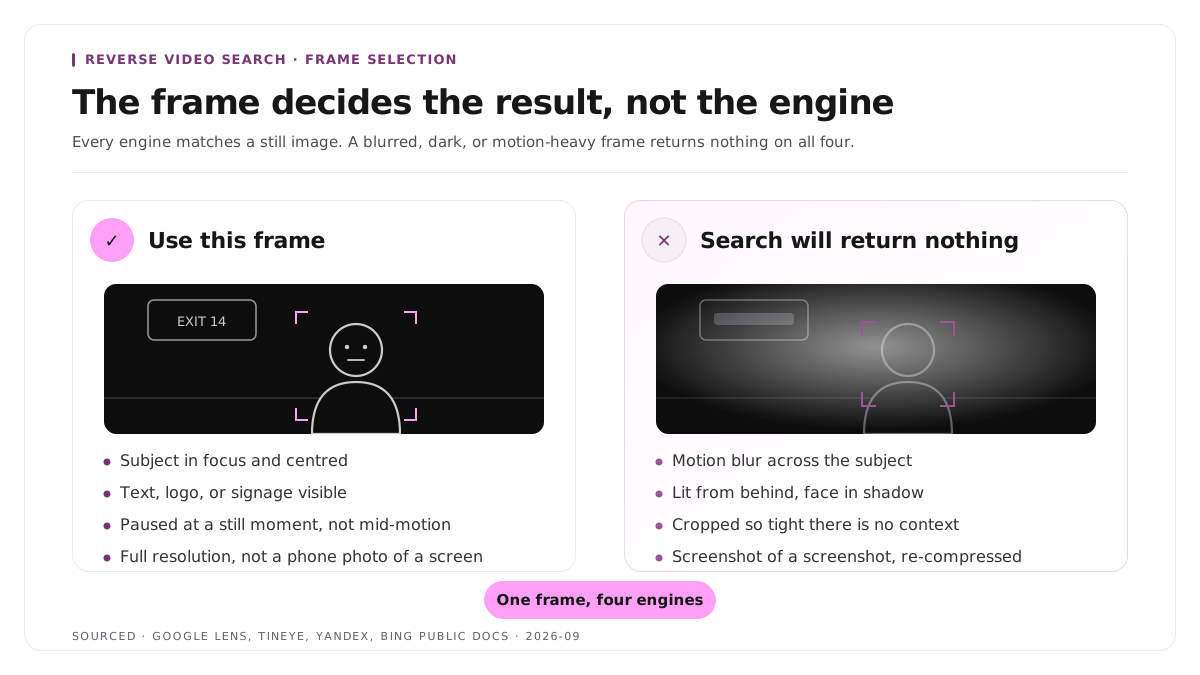
A frame is findable when it contains a face, a logo, a product or a landmark in focus, when the lighting is adequate, and when no burned in captions sit across the subject. Dark frames match almost nothing. Captions confuse the matcher.
Take two or three frames from different points in the video before starting. If the first returns nothing, the second usually does.
Step 1: capture the frame on iPhone
- Play the video and pause on a clear frame.
- Press the side button and volume up together to capture a screenshot.
- Open the Google app rather than Safari, because Lens is built into the app.
- Tap the Lens camera icon in the search bar, then the photo library icon at the bottom left.
- Select the screenshot and drag the crop handles so only the distinctive part of the frame remains.
- Scroll the results and tap Find image source to list the pages hosting that visual.
If Lens returns nothing, open Yandex Images in Safari, tap the camera icon and upload the same screenshot. Yandex handles faces and video stills more reliably than Google does.
Step 2: capture the frame on Android
- Screenshot the frame, which is power and volume down on most devices.
- Open Google Photos, select the screenshot and tap the Lens icon in the bottom toolbar. Android includes Lens inside Photos, so nothing extra needs installing.
- Crop to the subject using the on screen handles.
- Tap a result to open the source page.
On a Samsung device you can skip the second step, because long pressing the home button or using Bixby Vision routes to the same image index.
Step 3: run the frame through four engines on desktop
Desktop produces better results because you can compare several engines in adjacent tabs.
- Pause and screenshot the frame. Use Win and Shift and S on Windows, or Cmd and Shift and 4 on Mac.
- Go to google.com, click Search by image, then Upload a file, and select the image. You can also drag the file straight into the search box, or right click any image already on a page and choose Search with Google Lens.[1]
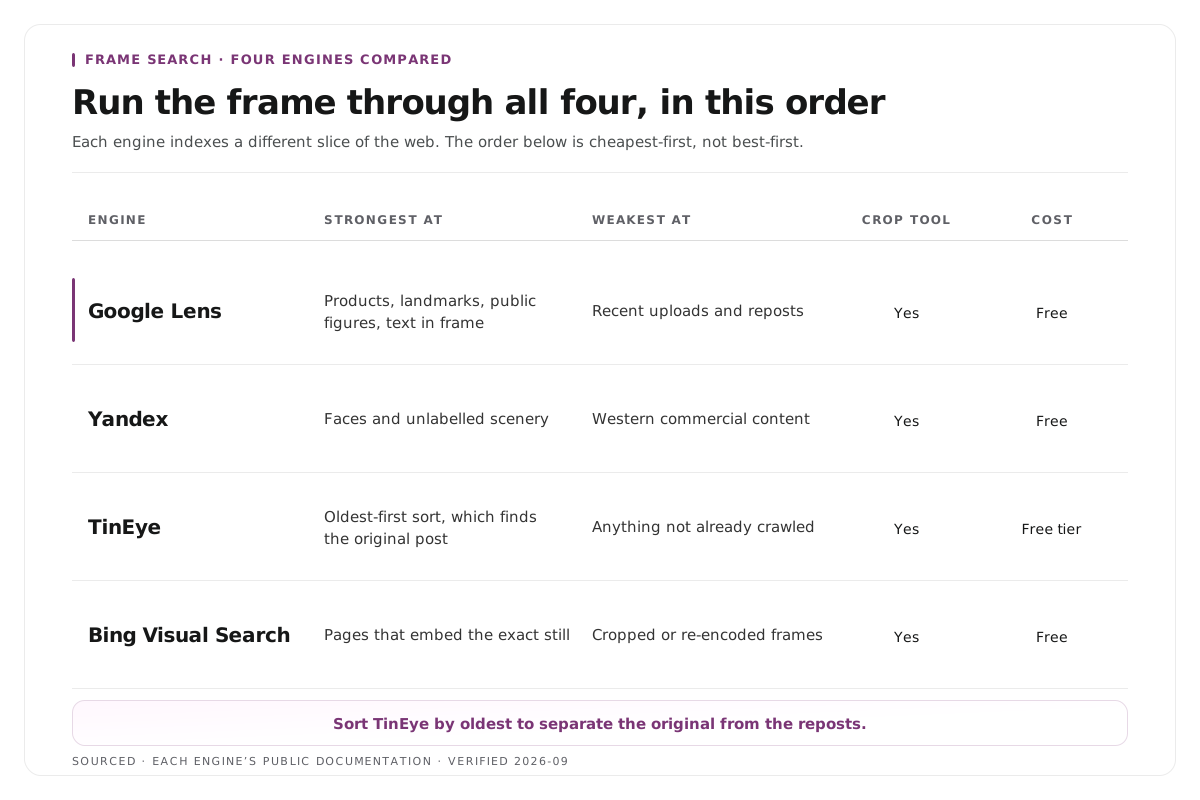
- Repeat the upload in Bing Visual Search, Yandex Images and TinEye, because each indexes a different portion of the web.
Google returns AI overviews, objects identified in the image, similar images and websites carrying the image.[1] Bing is strongest on retail and product footage. Yandex is the most capable of the four on faces and older material. TinEye allows results to be sorted by oldest, which is the fastest route to the original upload rather than the most popular repost.
Image brief. reverse-video-search-engines-compared.webp, 1200x800, under 180 KB. Alt text: "Comparison of Google Lens, Bing Visual Search, Yandex Images and TinEye for reverse video search". A four column graphic built from the comparison table below, with engine logos and a five point rating for video frame hit rate.
Which engine to use
| Engine | Strongest at | Surfaces original or reposts | Cost |
|---|---|---|---|
| Google Lens | Speed, mobile, objects and places | Reposts, ranked by relevance | Free |
| Yandex Images | Faces, video stills, difficult cases | Mixed | Free |
| Bing Visual Search | Products, retail, branded footage | Reposts | Free |
| TinEye | Chronology, the first appearance | Original, when sorted by oldest | Free, paid API |
| Berify | Bulk monitoring of your own footage | Original | Paid |
Worked example: a 12 second clip with no context
This is an invented example, not measured data.
Consider a 12 second clip circulating without attribution. It opens on a two second fade, carries burned in captions across the lower third, and shows a speaker against a plain wall.
The fade is useless, because it matches nothing. The captioned section is useless, because the text obscures the subject. The only viable frame arrives at roughly seven seconds, where the speaker turns and a company logo becomes visible on a laptop lid behind them.
That logo, cropped tightly and uploaded alone, identifies the source in one search. The speaker's face, cropped from the same frame, returns nothing. The lesson is not which engine was used. It is that the identifying object was not the obvious subject of the shot.
Handling difficult formats
GIFs and WebM files. A GIF or WebM is a short video without audio, so the same method applies, but the animated file must be converted to a still first because most engines reject it. Open the file in a browser, right click and choose Open image in new tab, screenshot it, then upload the screenshot. Never upload the animated file itself, because engines either refuse it or match only the first frame, which is usually a fade. The format background is covered in what a GIF is and how to use it on social media.
TikTok, Reels and Shorts. Crop the platform interface out before searching. Buttons, usernames and captions sit on top of the frame and break matching.
Footage with no distinctive frame. Screen recordings, slide decks and talking heads against blank walls will not match. Search a verbatim line from the audio in quotation marks instead, because transcripts, news coverage and forum threads often surface the source faster than any image index.
Where Montage fits
Montage does not perform reverse searches and has no role in verifying third party footage. It is relevant only to the second reason people arrive at this problem, which is tracking their own material after publication.
Montage takes one long recording, whether a podcast, webinar, panel or conference talk, and produces 8 to 10 scored clips with branded captions and vertical framing already applied. It accepts files up to 20GB at 4K and exports MP4 for social platforms, or XML, FCPXML and JSON for an editor.[2] Clips that leave with your branding already applied remain identifiably yours when reposted, which removes the need for this workflow entirely.
The editorial decisions remain yours. Montage does not decide which clip should be published, and it does not post anything on your behalf. If your source material is a show rather than a single recording, the podcast clip finder processes one episode at a time, and the transcript based approach to trimming is covered in text based video editing.
Limitations and troubleshooting
The search returns nothing at all. The frame is the usual cause. Dark, blurred, captioned or motion heavy stills match very little. Select a different frame from the middle of the video, crop tightly to one recognisable subject, and try a second engine before concluding the video is not indexed.
The results show reposts rather than the original. Google and Bing rank by relevance and popularity, so the largest account outranks the first uploader. Use TinEye and sort by oldest.
The video is a screen recording. Frame matching will not work. Search a quoted line from the audio instead.
The frame contains several possible subjects. Crop to one. Matching operates on the dominant subject, and four competing subjects produce one arbitrary choice.
For the image equivalent of this workflow, see how to reverse image search on iPhone, Android and desktop, and for a ranked tool comparison see the best reverse video search tools, free and paid.
Frequently asked questions
Is there a real reverse video search engine?
No. No service accepts a video file and searches the web for it. Every tool marketed that way extracts frames and queries an image index, which is why the manual screenshot method performs as well as any paid alternative.
What is the best free reverse video search?
Google Lens for a single quick lookup, Yandex Images for faces and low light footage, and TinEye when the earliest copy matters more than the most popular one. All three are free and none require an account.
Can I reverse search a video on my phone?
Yes. Screenshot a clear frame and use Google Lens, which is built into the Google app on iPhone and into Google Photos on Android. The process takes roughly 30 seconds.
How do I find the original source rather than a repost?
Use TinEye and sort results by oldest. Relevance ranked engines surface the largest repost rather than the first upload.
Does Montage help with reverse video search?
No. Montage produces clips from your own recordings. It has no reverse search function and no role in verifying footage you did not create.
If you have a long interview, podcast, panel or webinar and want the clips to leave with your branding already applied, use Montage to direct the first cut from your footage. You keep the final editorial call.
Sources
[1] https://support.google.com/websearch/answer/1325808 : Search with an image on Google, Google Search Help
[2] https://montage.app : Montage