How to Reverse Image Search on iPhone, Android and Desktop
Reverse image search in under 60 seconds on any device. Compare Google Lens, Yandex, Bing and TinEye, and learn how to find the original rather than the repost.
A step by step guide to searching with an image on any device, covering the one habit that improves results more than any tool choice, which of the four major engines to use for which job, and how to establish where an image first appeared.
To reverse image search, upload an image, paste its URL, or drag it into the search box at google.com, then repeat in Yandex Images, Bing Visual Search or TinEye if the first result set is unhelpful.[1] On iPhone use the Lens icon inside the Google app. On Android use Google Photos.
The useful question is not "which engine should I use?" It is "what exactly am I identifying?" Answering that decides the crop, and the crop decides the result.
Crop before you search
Most failed reverse image searches fail for one reason. The searcher uploaded the whole image.
Matching operates on the dominant subject. A photograph containing a person, a building, a car and a sky presents four competing subjects. The engine selects one, and it is frequently the wrong one.
Crop to the single element you are trying to identify. Every engine below includes a crop control on its results screen, so the search can be narrowed and rerun without starting again.
Crop to the face, the logo, the product label, the building or the artwork. Crop out sky, blank walls, platform interface elements, and any watermark that is not itself the subject.
Step 1: search on iPhone
- Save the image to Photos by long pressing it and choosing Add to Photos, or take a screenshot.
- Open the Google app, because Lens is built into it and Safari alone does not provide the same tool.
- Tap the Lens camera icon in the search bar, then the image library icon at the bottom left.
- Select the image and drag the crop handles around the subject.
- Tap Find image source to list every page hosting that image.
A faster route exists while browsing. Long press any image on a webpage in Safari and choose Search Image with Google, which skips saving the file.
Step 2: search on Android
- Open Google Photos and select the image.
- Tap the Lens icon in the bottom toolbar.
- Crop to the subject using the on screen handles.
- Tap Find image source for the list of pages using it.
In Chrome, long press any image on a page and choose Search image with Google to skip Photos entirely.
Step 3: search on desktop
Google documents four routes on a computer.[1]
- Go to google.com, click Search by image, then Upload a file, and select the image.
- Alternatively, drag the image file directly into the search box.
- Alternatively, right click an image on any page, choose Copy Image Address, then paste the URL and search.
- Alternatively, right click an image on a page and choose Search with Google Lens to show results in a sidebar.
Results include AI overviews, search results for objects identified within the image, similar images, and websites carrying the image.[1]
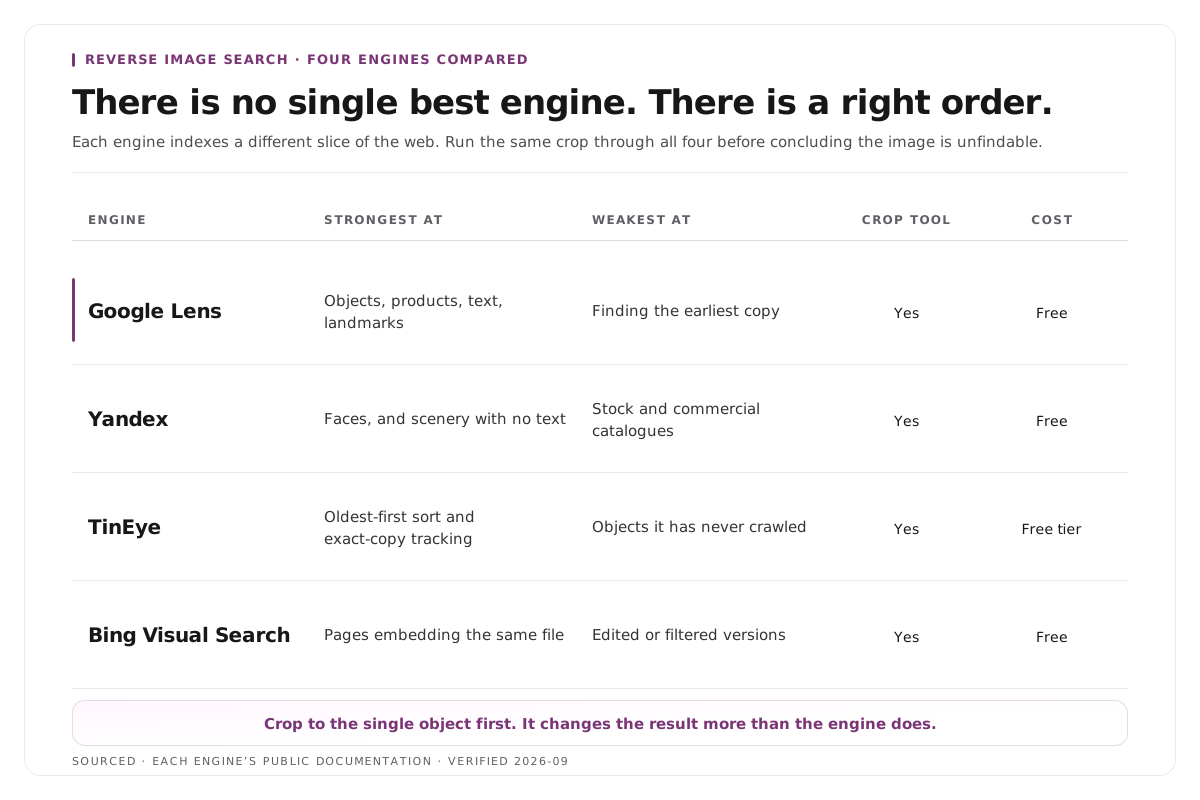
If Google returns nothing useful, run the same file through Yandex Images, which is the strongest of the four on faces and on older or obscure material, Bing Visual Search, which is strongest on products and retail listings, or TinEye, which allows results to be sorted by oldest.
Which is the best reverse image search
| Engine | Strongest at | Surfaces the original | Free |
|---|---|---|---|
| Google Lens | Objects, places, broad web coverage | No, relevance ranked | Yes |
| Yandex Images | Faces, obscure and older images | Sometimes | Yes |
| Bing Visual Search | Products, retail, shopping | No | Yes |
| TinEye | Chronology, first appearance | Yes, when sorted by oldest | Yes, paid API |
There is no single best engine. They return materially different result sets, and a thorough search means running two or three. If only one is possible, use Google Lens. When Google fails, Yandex most often recovers the search.
Worked example: an uncredited product photograph
This is an invented example, not measured data.
Consider a product photograph circulating without credit. It shows a device on a desk, beside a coffee cup, in front of a window.
Uploaded whole, the search returns generic desk photography and stock imagery, because the dominant subject is the scene rather than the device. Cropped to the device alone, with the desk and window removed, the same search identifies the manufacturer and model immediately.
Cropped instead to the coffee cup, it returns a different and equally accurate answer about a cup. That is the point. The engine did not fail in either case. It answered the question the crop actually asked.
Handling difficult cases
Screenshots from social platforms. Crop out the interface. Usernames, buttons, like counts and captions sit above the image and degrade matching considerably.
Animated GIFs. Engines will not accept an animated file. Screenshot a clear frame instead, and avoid the first frame, which is usually a fade. The same method applies to video, covered in how to reverse video search on iPhone, Android and desktop, and the format background is in what a GIF is and how to use it on social media.
Finding the first publication rather than the largest repost. Use TinEye sorted by oldest. Relevance ranked engines will place a large account above the original creator.
Monitoring your own images. Run key thumbnails through TinEye monthly. Unfamiliar domains in the results give you a dated list to act on.
Where Montage fits
Montage performs no reverse searching and has no role in verifying images you did not create. It is relevant only to the second reason people run these searches, which is tracking their own published work.
Montage converts one long recording into 8 to 10 scored clips with branded captions and framing already applied, accepts files up to 20GB at 4K, and exports MP4 for social platforms or XML, FCPXML and JSON for an editor.[2] Clips that leave already branded stay recognisable when reposted.
The judgement remains human. Montage does not select which clip to publish, does not post on your behalf, and does not monitor the web for reuse. For caption treatment by audience, see caption styles for B2B and B2C platforms, and for the measured comparison of clipping tools, see the state of AI video clipping benchmark report.
Limitations and troubleshooting
The results identify the wrong thing. The image contains competing subjects. Crop tightly to one and search again. This resolves the majority of poor results.
The search returns nothing. The image may be too small, too low in contrast, or not indexed. Try a larger version, try Yandex, and check whether a cropped detail performs better than the whole.
Only reposts appear. Switch to TinEye and sort by oldest.
The image is a screenshot of text. Image matching is the wrong tool. Search a quoted line of the text instead.
For a ranked comparison of the tools themselves rather than the method, see the best reverse image search tools, free and paid.
Frequently asked questions
What is the best free reverse image search?
Google Lens for general use, Yandex Images for faces and difficult material, and TinEye when the earliest copy matters. All three are free and none require an account.
Can I reverse image search on my phone?
Yes. On iPhone, use the Lens icon inside the Google app, or long press an image in Safari and choose Search Image with Google. On Android, use the Lens icon in Google Photos, or long press an image in Chrome.
Why does reverse image search show wrong results?
The image almost certainly contains several possible subjects and the engine matched one of the others. Crop to the single element you are identifying and repeat the search.
Is reverse image search free?
Google Lens, Yandex Images, Bing Visual Search and the TinEye web interface are free and unlimited for ordinary use. Paid tiers apply to API access and bulk monitoring.
Does Montage offer reverse image search?
No. Montage produces clips from recordings you supply. It has no search or monitoring function.
If you have a long interview, podcast, panel or webinar and want every clip to leave with your branding applied, use Montage to direct the first cut from your footage. You keep the final editorial call.
Sources
[1] https://support.google.com/websearch/answer/1325808 : Search with an image on Google, Google Search Help
[2] https://montage.app : Montage