How to Add Subtitles in iMovie on Mac, iPhone and iPad
How to add subtitles in iMovie using the Titles tool, why iMovie has no automatic captions or SRT import, and when to use something else instead.
How to build subtitles in iMovie using the Titles tool on every device, an honest account of what iMovie cannot do here, and how to decide whether it is the right tool for your video at all.
iMovie has no caption feature. Subtitles are built with the Titles tool, one title per line of speech, positioned and timed by hand. There is no automatic transcription and no way to import an SRT file, so every subtitle in an iMovie project is typed manually.
The useful question is not "how do I turn on captions in iMovie?" It is "how long is this video?" Manual subtitling is entirely workable for a one minute clip and genuinely unreasonable for a forty minute one, and knowing which you have saves an evening.
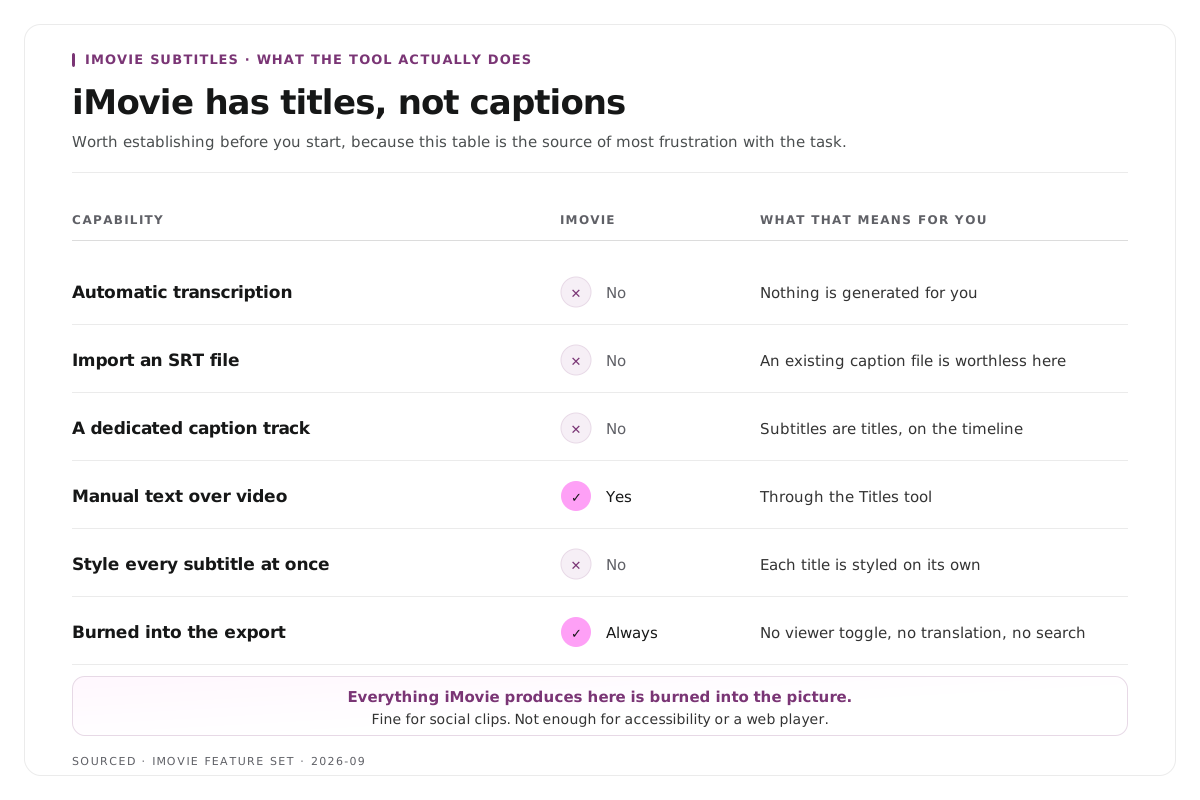
What iMovie can and cannot do
Worth establishing before you start, because it is the source of most frustration with this task.
| iMovie | |
|---|---|
| Automatic transcription | No |
| Import an SRT file | No |
| Dedicated caption track | No |
| Manual text over video | Yes, through Titles |
| Style every subtitle at once | No, each title is styled individually |
| Burned into the exported video | Yes, always |
Everything iMovie produces here is burned into the picture. There is no selectable subtitle track, which means no viewer toggle, no translation and no searchable text. For social clips that is fine, since most platforms want burned in text anyway. For accessibility compliance or a web player it is not enough.
How to add subtitles in iMovie on Mac
- Open your project and import the video if it is not already in the timeline.
- Click Titles in the toolbar above the browser.
- Choose a simple style. The plain lower third styles work best, because animated titles draw attention away from the speech they are meant to support.
- Drag the title onto the timeline, positioning it above the clip at the point the line of speech begins.
- Double click the title in the timeline to edit it, then type the line.
- Use the Inspector to set the font, size and colour, and drag the ends of the title block to match the duration of the spoken line.
- Repeat for every line of speech.
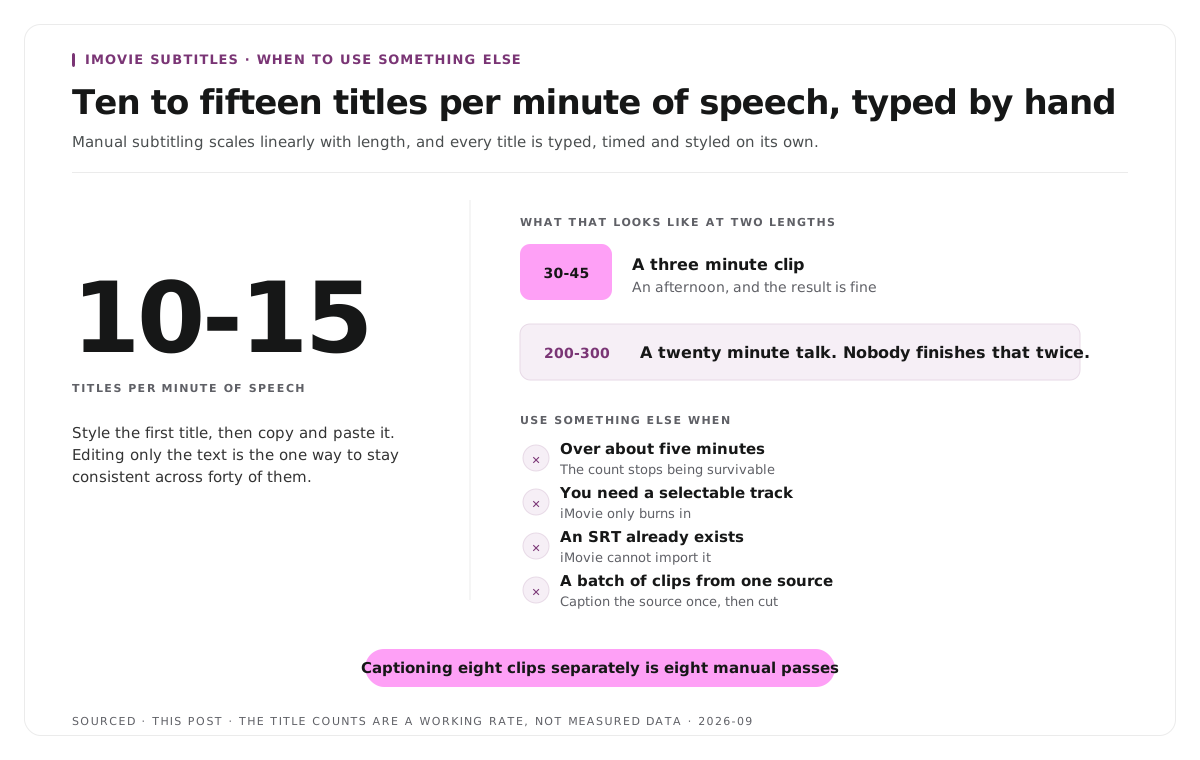
Do the styling on the first title and then copy and paste it. Pasting a styled title and editing only the text is far faster than styling each one, and it is the only way to keep them consistent.
How to add subtitles in iMovie on iPhone and iPad
- Open iMovie, create or open a project, and import the video.
- Tap the clip in the timeline to select it.
- Tap the plus icon, then choose Titles.
- Pick a style, then type the line into the text box.
- Set the font, size and colour, then adjust the duration and position.
- Preview, then repeat for each line.
The mobile version is more limited than the Mac version, with fewer style controls and less precise timing. For anything beyond a few lines, do it on the Mac.
Making manual subtitles readable
Since you are typing every line, the choices you make on the first one carry through the whole video.
Keep each title to one short line. Two at most. A subtitle that runs the full width of the frame is harder to read than two shorter ones, and on a phone it wraps unpredictably.
Break on natural phrases. Split where a speaker would pause, not where the text box happens to run out.
Set the size for a phone. iMovie previews at window size, which flatters text badly. Export a test and watch it on a handset before committing to forty titles.
Use a style with a background or a strong outline. Plain white text vanishes over bright footage, and iMovie gives you no shadow control worth relying on.
Keep them clear of the bottom edge. Platform interface elements sit there.
Treatment by audience and platform is covered in caption styles for B2B and B2C platforms.
When iMovie is the wrong tool for this
Being direct about this saves time.
Anything over about five minutes. Manual subtitling runs at roughly ten to fifteen titles per minute of speech. A twenty minute video is several hundred titles, typed and timed individually, and nobody finishes that twice.
Anything that needs a selectable caption track. iMovie only burns in. If you need a toggle, a translation or searchable text, it cannot produce one.
Anything where an SRT already exists. iMovie cannot import it, so an existing file is worthless here and you would retype it by hand.
A batch of clips from one source. Captioning eight clips separately in iMovie is eight manual passes. Captioning the source once in an editor that supports transcription, then cutting, is one pass, and realistic expectations for how many clips a recording yields are in how many clips you should make from one podcast episode.
For the first three, Final Cut Pro handles all of them and can generate subtitles automatically, and the tools around that workflow are compared in the best AI clip makers for Final Cut Pro editors.
Worked example: a three minute clip and a thirty minute talk
This is an invented example, not measured data.
A three minute clip contains roughly forty lines of speech. Styled once and copied, that is about thirty five minutes of typing and timing in iMovie, and the result is perfectly good. iMovie is the right tool.
The same person then tries a thirty minute conference talk. That is roughly four hundred titles. At the same rate it is most of two working days, and the styling drifts because nobody stays consistent across four hundred manual operations.
Nothing about iMovie changed between the two jobs. The length did. The decision point sits somewhere around five minutes, and the useful skill is recognising which side of it you are on before starting rather than after two hours.
Where Montage fits
Montage is not an editor and does not replace iMovie. It has no timeline, no titles tool and no general editing features, and it will not style text inside an iMovie project.
What it does is take a long recording and return the moments worth publishing. Upload up to 20GB at 4K and it gives you 8 to 10 scored clip candidates rather than an unranked pile, each trimmable by editing transcript text, with branded captions already applied and vertical reframing done, exporting as MP4 for social or as XML, FCPXML and JSON for an editor.[1]
The relevant part for anyone reading this page is that the captions arrive with the clips. If the reason you are subtitling in iMovie is that you cut clips from a longer recording and now have to caption each one by hand, that is the specific job this removes. It does not help if you are subtitling footage you shot for its own sake.
The editorial judgement stays with you. Montage does not decide which clip is worth publishing, does not write the text and does not post anything. To try it on a single recording, use the podcast clip finder, and the transcript based trimming approach is described in text based video editing.
Limitations and troubleshooting
There is no Captions option in iMovie. There is no caption feature. Subtitles are built with Titles, and this is a design limitation rather than a hidden setting.
The SRT file will not import. iMovie does not accept caption files in any format. Use Final Cut, Premiere or another editor if you have one.
Every title looks slightly different. Each was styled individually. Style one, then copy and paste it and change only the text.
Titles read well on the Mac and badly on a phone. The preview window flatters text. Export a test and watch it on a handset.
The title overlaps the platform interface. Move it up. The bottom of the frame belongs to progress bars and buttons.
Timing drifts after trimming a clip. Titles are attached to the timeline rather than the speech, so any trim shifts everything after it. Finish the cut before adding a single title.
Frequently asked questions
Does iMovie have automatic subtitles?
No. iMovie has no transcription and no caption feature. Every subtitle is typed manually using the Titles tool.
Can you import an SRT file into iMovie?
No. iMovie does not accept caption files in any format, so an existing SRT cannot be used and would have to be retyped.
How do you add subtitles in iMovie on a Mac?
Click Titles in the toolbar, choose a simple style, drag it onto the timeline where the line of speech begins, double click to type the text, then set the font and duration in the Inspector. Repeat for every line.
How do you add subtitles in iMovie on iPhone?
Tap the clip in the timeline, tap the plus icon, choose Titles, pick a style, type the line, then adjust the font, duration and position. Repeat for each line.
Are iMovie subtitles burned into the video?
Yes, always. iMovie produces no selectable caption track, so the text is part of the exported picture and cannot be toggled, translated or searched.
Does Montage add subtitles in iMovie?
No. Montage applies branded captions to the clips it produces before they reach any editor. It does not work inside iMovie and does not replace it.